Create Expenses By Forwarding Email Receipts

Transforming your email receipts into draft expenses has never been easier! ITILITE empowers you to effortlessly create expense entries by simply forwarding your digital receipts, streamlining your expense reporting process.
Effortless Expense Creation: How It Works
ITILITE makes creating expenses from your email receipts incredibly simple. When you forward a receipt email to our dedicated inbox, ITILITE intelligently processes the content to generate a draft expense for you. This means less manual data entry and more time for what matters.
Here's a quick overview of the process:
- You forward an email containing your receipt to auto.expense@itilite.com from your registered email ID.
- ITILITE validates your sender email against its user database, ensuring secure and accurate processing.
- Our system then parses the email for attachments and content, using advanced OCR (Optical Character Recognition) and AI to extract key data points like amount, date, merchant, and a suggested expense category.
- A draft expense is automatically created in your ITILITE account, pre-populated with the extracted information and the receipt attached. You can expect this to happen quickly, with most emails processed within approximately two minutes.
- You'll receive a confirmation email with a direct link to review your auto-created draft expense. From there, you can easily add any missing details (like a project code or purpose), attach it to a report, and submit it for approval.
Supported Receipt Types and Formats
ITILITE is designed to handle a variety of digital receipt formats, making it convenient for you to capture all your expenses. We support common file types to ensure a smooth experience.
You can forward receipts in the following formats:
- PDF: Standard PDF files containing your receipt content.
- Images: JPG and PNG image files of your receipts.
If your email contains multiple valid receipt attachments, ITILITE will intelligently identify each one and create a separate draft expense for each attachment. This ensures all your expenses are captured efficiently. Even if your receipt is embedded directly in the email body (HTML) rather than as an attachment, our system will convert the email content into a PDF, extract the necessary data, and create a single draft expense for you.
Setting Up Your Personal Email for Forwarding
Yes, you absolutely can use your personal email ID to forward receipts to ITILITE! This flexibility ensures you can easily manage expenses regardless of which email account receives the merchant receipt. To enable this, you'll just need to add and verify your personal email ID within your ITILITE expense account.
Follow these steps to set up your personal email for forwarding and then create expenses:
- Navigate to Your Expense Profile: From the dashboard, locate and click on the Expense section, then proceed to your Profile settings. This is where you manage your personal expense-related configurations.
- Locate Expense Mail Forwarding: Within your profile, find the Expense Mail Forwarding section. This feature allows you to link additional email addresses for receipt submission.
- Add Your Personal Email ID: Enter your personal email address into the designated field and click Add email. This initiates the process of linking your personal email to your ITILITE expense account.
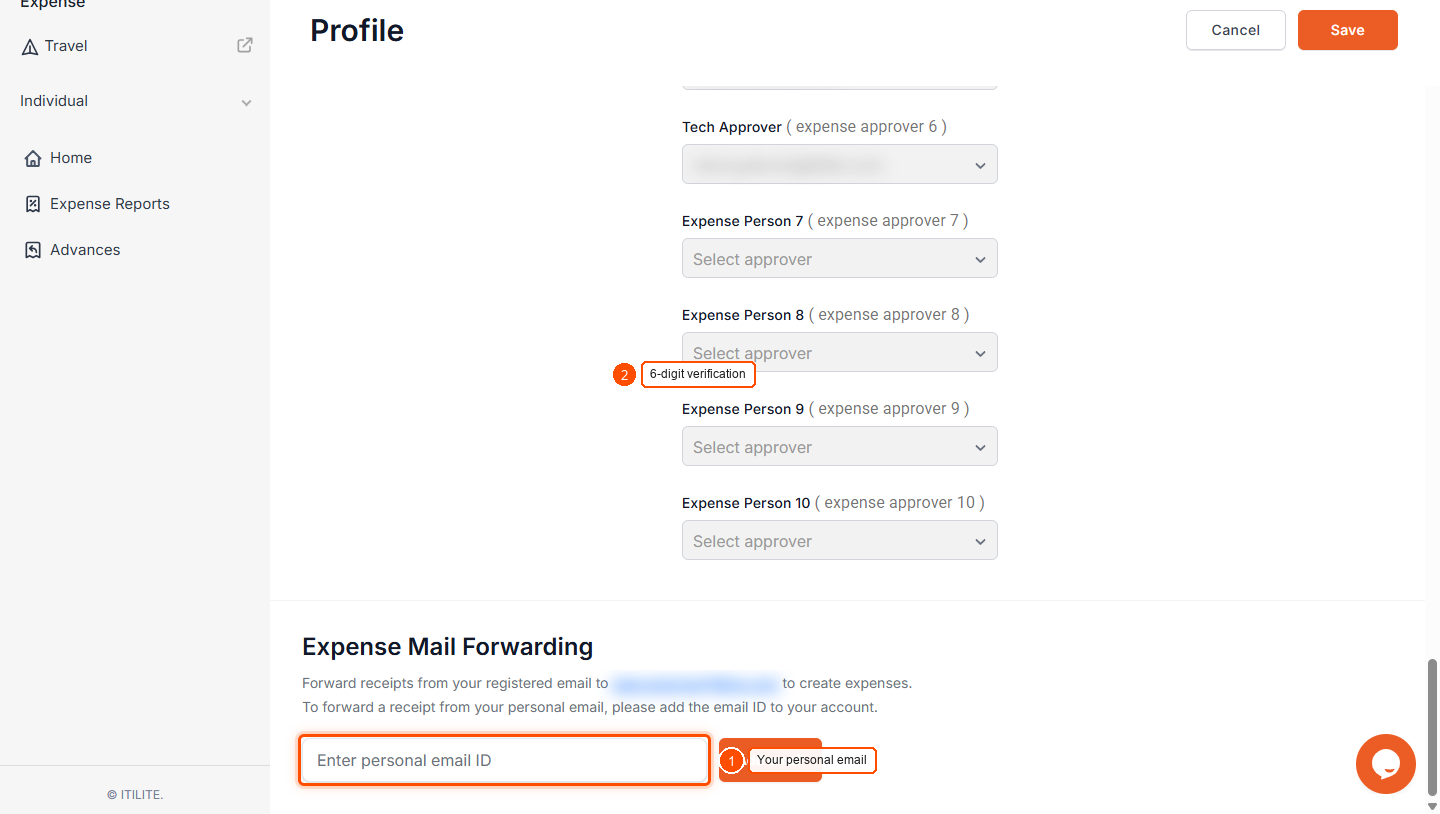
- Verify Your Email with OTP: A One-Time Password (OTP) will be sent to the personal email ID you just added. Check your inbox for this code and enter it into ITILITE to complete the verification process. This ensures the security of your account and confirms ownership of the email address.
- Confirmation of Successful Setup: Once the OTP is successfully entered, your personal email ID will be verified and added to your ITILITE expense account. You'll see a confirmation, indicating that you are now ready to forward receipts from this email address.
- Forward Your Receipts to Create Expenses: With your email(s) registered, simply forward any email containing a receipt to auto.expense@itilite.com. ITILITE will automatically process the email and its attachments to create a draft expense for you.
Understanding Email Subject Lines
While adding a subject line to your forwarded receipt email isn't mandatory, it can be quite helpful! If you include a subject line, ITILITE will use it as a note or comment on the created draft expense, where supported by the expense category. This provides additional context at a glance.
If you choose to leave the subject line blank, don't worry – ITILITE's AI is smart enough to create a relevant comment by analyzing the receipt or email content. In cases where an expense category doesn't support comments, neither a subject nor an AI-generated note will be added. Regardless, your expense will be created efficiently without any extra effort from your side.
Important Considerations for Seamless Expense Creation
To ensure your expense creation process is always smooth and efficient, keep these important points in mind. ITILITE has built-in safeguards and intelligent processing to help you every step of the way.
NOTE: For your security and accurate processing, ITILITE validates the sender email address against your registered user database. If you forward a receipt from an unrecognized email address, the system will send an "Email address not recognized" auto-reply, and no expense will be created. Always ensure you're forwarding from an email ID registered in your ITILITE profile.
PRO-TIP: ITILITE always creates a new draft expense from forwarded receipts. This feature does not attach receipts to existing expenses or automatically submit them. You'll always have the opportunity to review, add any missing details, and then submit your expense.
Here are a few more helpful guardrails:
- Invalid Attachment Formats: If you send an unsupported file type (like .docx, .xlsx, .txt, or corrupted PDFs) or content that isn't a receipt, ITILITE will send an "Invalid attachment - Unable to process file" email, and no expense will be created. Stick to PDF, JPG, or PNG for best results.
- OCR Extraction Failures: In rare cases, if the receipt image quality is poor, the document is blank, or the content isn't clearly a receipt, the system may struggle to extract data. You'll receive a "Receipt processing failed – Unable to read {filename}" email, advising you to retake the photo, forward the original email, or create the expense manually.
- Security Measures: All incoming emails are subject to robust security checks, including virus scanning, spam filtering, and attachment validation, ensuring your data and the platform remain secure.
- Personal Expenses Only: Currently, this feature is designed for individual users to forward receipts for their own expenses. Filing expenses on behalf of others via email forwarding is not supported at this time.
Verification & FAQs
After successfully forwarding your receipt, you'll receive a confirmation email from ITILITE indicating that your expense draft is ready for review. You can also log into your ITILITE account (web or app) and navigate to your expenses list, where you'll see the newly created draft expense, complete with auto-categorized details and the attached receipt.
Q: Can I forward receipts from my personal email ID?
A: Yes, absolutely! You can add and verify your personal email ID within your ITILITE expense profile. Once verified, you can forward receipts from that email address to auto.expense@itilite.com to create expenses.
Q: What happens if I forward an email with multiple receipts attached?
A: ITILITE is smart! If your email contains multiple valid receipt attachments (PDF, JPG, PNG), our system will identify each one and create a separate draft expense for every individual receipt. You'll receive a notification confirming the creation of multiple drafts.
Q: What if my receipt is in the email body instead of an attachment?
A: No problem at all! If your email has no attachments but the receipt content is embedded in the email body (HTML), ITILITE will convert the email body into a PDF, run OCR and categorization on it, and create a single draft expense using that content as the receipt.
Q: What information does ITILITE automatically extract from my receipts?
A: ITILITE uses AI and OCR to automatically extract key details like the expense amount (with currency detection), the transaction date, the merchant name and location, and a best-guess expense category. Any fields that cannot be reliably extracted will be marked for your attention in the draft expense.
Q: Does forwarding a receipt automatically submit my expense or attach it to an existing one?
A: No, forwarding a receipt always creates a new draft expense in your ITILITE account. It does not automatically submit the expense or attach it to an existing one. This gives you full control to review, add any missing information, and then submit it when you're ready.
Ready to take your Travel Management to next level
A fully integrated corporate travel management software that dramatically reduces spends while improving user experience