
What is Access Delegation?
Access Delegation allows you to give another trusted user the same access you have in the web platform. When delegation access is active, the selected user can act on your behalf using your access. This only works on the Web platform. The mobile app continues to work as usual with no changes.
What can someone do with delegation access?
A user with delegation access can:
- Access everything you can access
- Perform actions on your behalf (for example, create or manage bookings)
- See and manage information you normally have access to
They will always see a clear indicator when they are acting on your behalf.
How long does delegation access last?
Delegation access does not expire automatically. It will remain active until you remove it from your profile.
Who should I give delegation access to?
You should only give delegation access to:
- A trusted colleague
- Someone who understands your responsibilities
- Someone who is authorized to act on your behalf
Delegation access gives the same level of access you have.
How do I give delegation access?
Step-by-step
- Go to Your Profile
- Open the Access Delegation section
- Click Give access to
- Select the user you want to give access to
- Confirm your choice
Once assigned, the user will receive an email notification.
How do I remove delegation access?
Step-by-step
- Go to Your Profile
- Scroll to the bottom of the page
- Open the Access Delegation section
- Click Remove access next to the user
User will be notified, and access will be removed within 60 minutes.
How will I know if I am acting on behalf of someone else?
Click on your profile icon, and you can “Act as” the other user
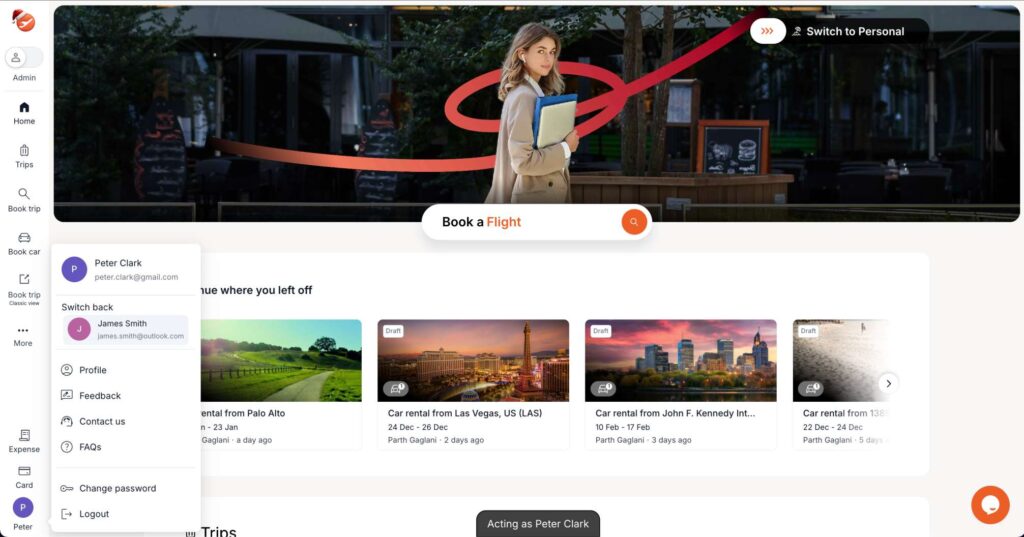
When you are using delegation access:
- You will see a clear banner indicating who you’re acting on behalf of
- Actions you take will be attributed correctly for audit purposes
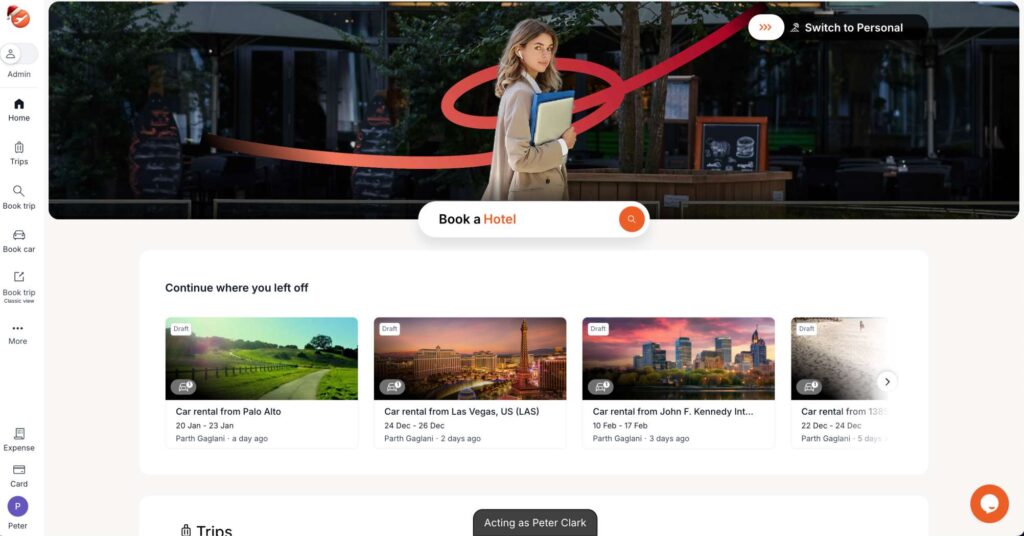
Please note: When the Delegatee books while acting on behalf of the Delegator, booking emails are sent to the Delegator based on company settings, and no additional recipients are added in CC.
How do I switch back to my original account?
If you are currently acting as another user, you can switch back to your original account in one of the following ways:
Option 1: Switch from the Travel Dashboard
- Go to the Travel Home (Dashboard) page
- Click your profile icon
- Select Switch back to my account
Note: If you are on Client Admin (Travel), Expense, or Card pages, you will first need to navigate to the Travel Dashboard to see this option.
Option 2: Log out and log back in
- You can log out from any page and log back in to return to your original account.
Is delegation access logged?
Yes.
Actions performed using delegation access are logged for audit and tracking purposes, including:
- Who performed the action
- On whose behalf the action was taken
Can I give delegation access to more than one person?
Yes, you can give access delegation to more than one person.
However, it’s recommended to assign access delegation to only one person at a time to keep responsibilities clear and avoid confusion.
Can someone with delegation access give access to someone else?
No.
A user with delegation access cannot pass it on to another person.
What happens if delegation access was given by mistake?
If delegation access was granted in error:
- Remove it immediately from your profile
- They will receive a notification confirming the removal
What happens if my organization disables this feature?
If your organization disables delegation access:
- All delegation access will be paused
- No data is deleted
- Delegation access can resume if the feature is re-enabled
When should I use delegation access?
Delegation access is especially useful when:
- You are out-of-office
- You are on leave
- You need uninterrupted coverage for your responsibilities
Need help?
If you have questions or concerns:
- Contact your administrator
- Or reach out to your account manager