Add To Calendar (Calendar Sync)

Connecting your calendar to ITILITE ensures your travel plans are automatically added to your schedule. This guide walks you through the simple steps to link your Google or Outlook calendar, keeping your trips organized and easily accessible.
Step-by-Step Guide
Follow these steps to connect your calendar:
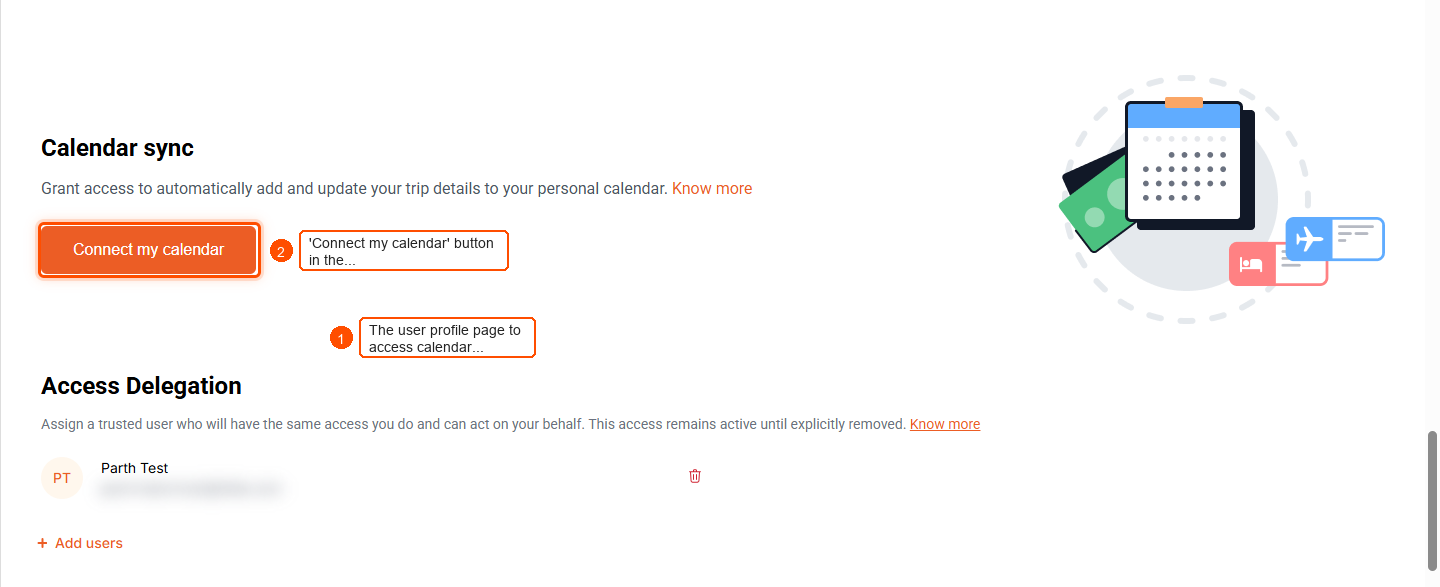
- From your ITILITE Dashboard, click on your Profile Dropdown in the top right corner, then select Profile. On your Profile page, scroll down to the Calendar Sync section. Click the Connect Calendar button.
- You will be redirected to the Google Calendar or Microsoft Calendar sign-in. Enter your email address and password to sign in.
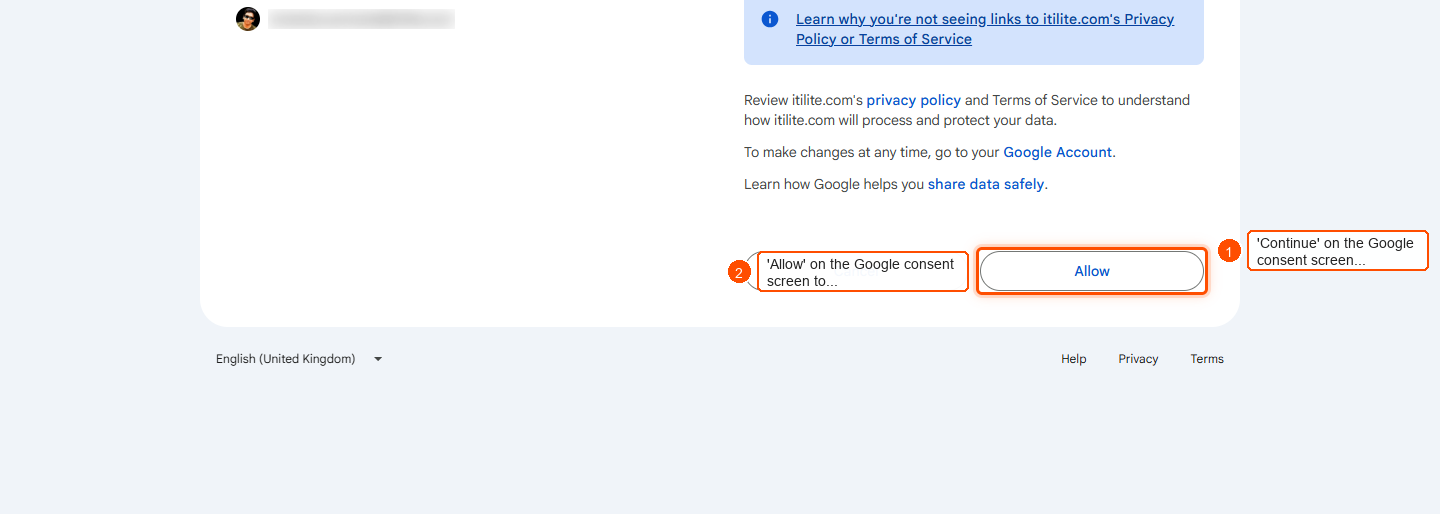
- Review the permissions ITILITE requests, then click Continue and Allow to grant access for ITILITE to manage its own travel events in your calendar.
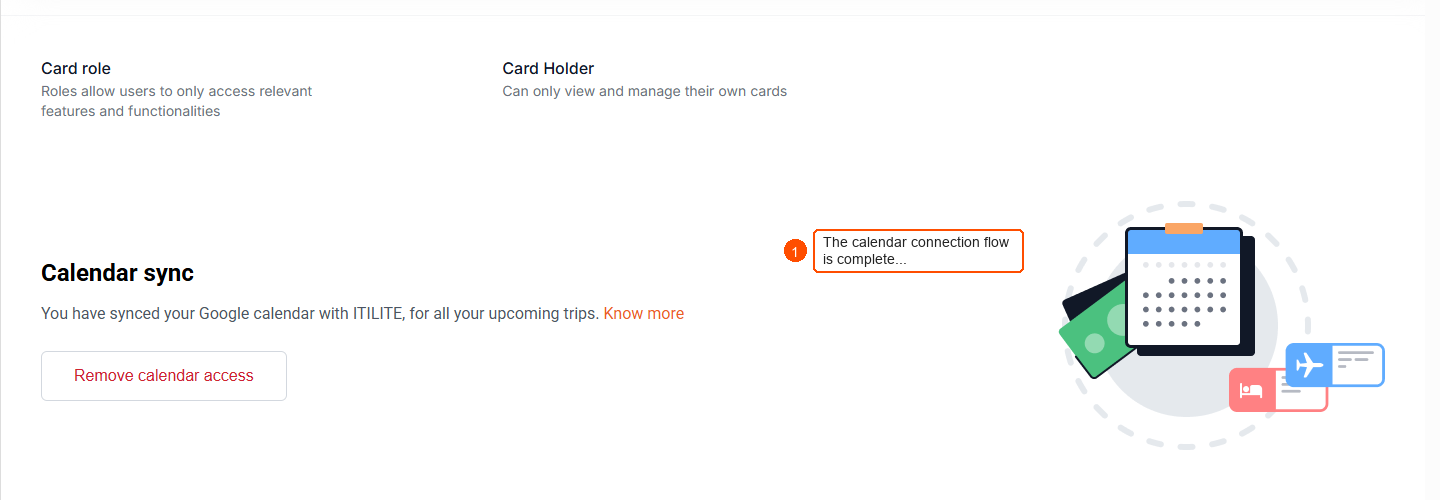
- Once authorized, you will be redirected back to ITILITE, and your calendar will be successfully connected.
Pro-Tips & Guardrails
NOTE: Calendar sync is configured exclusively through the ITILITE web portal. Once connected, bookings made via web, mobile, self-booking tools, or agents will automatically sync.
PRO-TIP: If you book travel for another employee, the events will be added to the traveler's calendar, provided they have connected their calendar. Your own calendar will not be updated automatically in this scenario.
Booking for yourself and for others
What happens when I book a trip for myself?
If your calendar is connected, ITILITE adds separate events for your flight, hotel, and rental car (when booked) and keeps them updated if anything changes.
What happens when I book a trip for someone else?
If you book travel for another employee, the events are added to the traveler’s calendar (as long as the traveler has connected their calendar). Your own calendar isn’t updated automatically.
What if the traveler hasn’t connected their calendar?
Then ITILITE won’t be able to add events to that traveler’s calendar.
Changes, cancellations, and issues
How do cancelations show up in my calendar?
When a booking is canceled in ITILITE, the related calendar event is removed or marked as canceled so your calendar stays accurate.
How do modifications work?
If your flight is rescheduled, hotel dates move, or car pickup details change, ITILITE updates the existing calendar event so you don’t end up with duplicates.
What if the calendar service is having problems?
Your booking will still be successful. If syncing can’t happen at that moment, you may be asked to reconnect your calendar later.
Time zones, permissions, and security
How are time zones handled?
Events are shown in the correct local times for your trip, and they display properly on your calendar even when you’re traveling across time zones.
What access does ITILITE request, and what does ITILITE read from my calendar?
ITILITE requests only the access needed to connect your account and create/update ITILITE travel events (including access related to your user profile and calendar events). Specifically, ITILITE uses permissions equivalent to user read, events read, and events write.
ITILITE does not read your personal calendar events. It does not access or view private events, and it does not access public events that were not created by ITILITE. ITILITE only uses the connection to create, update, or delete the ITILITE travel events it adds to your calendar.
How is my calendar connection protected?
Your calendar connection details are stored in an encrypted format and are used only to keep ITILITE-created travel events up to date. ITILITE does not try to access anything beyond this and is not aware of other events on your calendar.
Know more about ITILITE’s privacy policy here. https://www.itilite.com/privacy-policy/
Verification & FAQs
After connecting, you can verify the status in the "Calendar Sync" section of your ITILITE Profile. Your upcoming bookings will begin appearing in your connected calendar.
Q: Which calendar providers does ITILITE support?
A: ITILITE supports Google Calendar and Microsoft Outlook Calendar. Events will display in any calendar client configured with these providers (e.g., Google Calendar app, Outlook desktop, Apple Calendar).
Q: Will my past bookings be added to my calendar after I connect?
A: No, only bookings created or updated after you connect your calendar will be synced. There is no automatic backfill for trips booked before the connection.
Q: What details are included in the calendar events?
A: Events are created for each service (flight, hotel, rental car) with a clear title, relevant times, locations, and booking details (like confirmation numbers, flight numbers, hotel addresses) in the description. Flight events are marked as "busy," while hotel and rental car events are marked as "free."
Q: What happens if I disconnect my calendar?
A: If you disconnect, new bookings and updates will no longer sync to your calendar. Any events already added to your calendar will remain there, and you can manage them manually.
Q: What permissions does ITILITE request from my calendar?
A: ITILITE requests only the minimum permissions necessary to create, edit, and delete the travel events that ITILITE itself adds to your calendar. ITILITE does not read your other personal calendar events.
Ready to take your Travel Management to next level
A fully integrated corporate travel management software that dramatically reduces spends while improving user experience