How to submit an expense report?

This guide walks you through the process of creating a new expense, linking it to an expense report, and submitting the report for approval within ITILITE. Ensure all mandatory fields are accurately filled for a smooth submission.
Step-by-Step Guide
Follow these steps to create and submit an expense report:
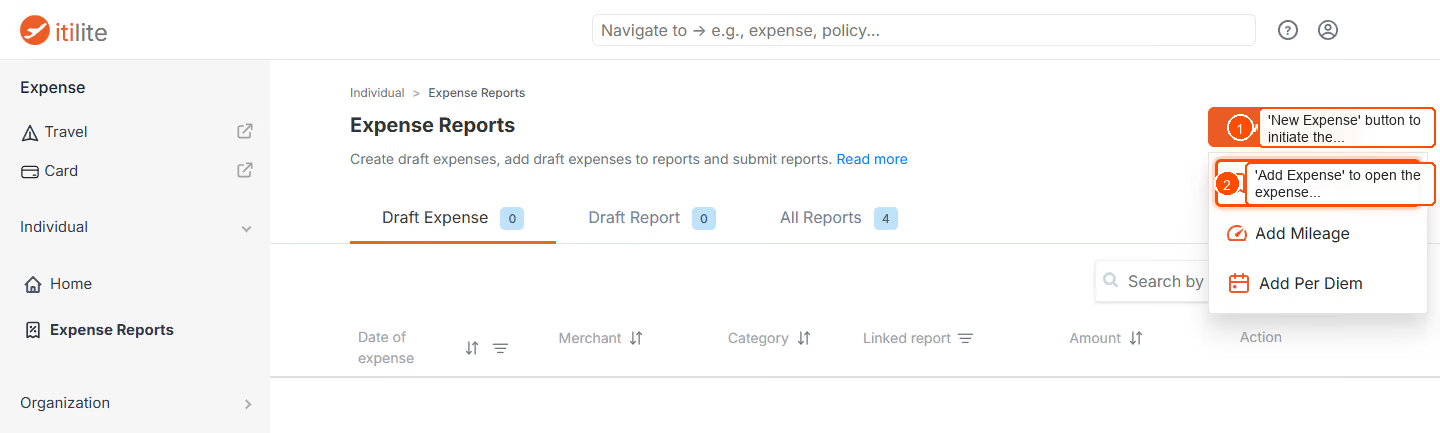
- From your ITILITE Dashboard, click the New Expense button to begin creating a new expense.
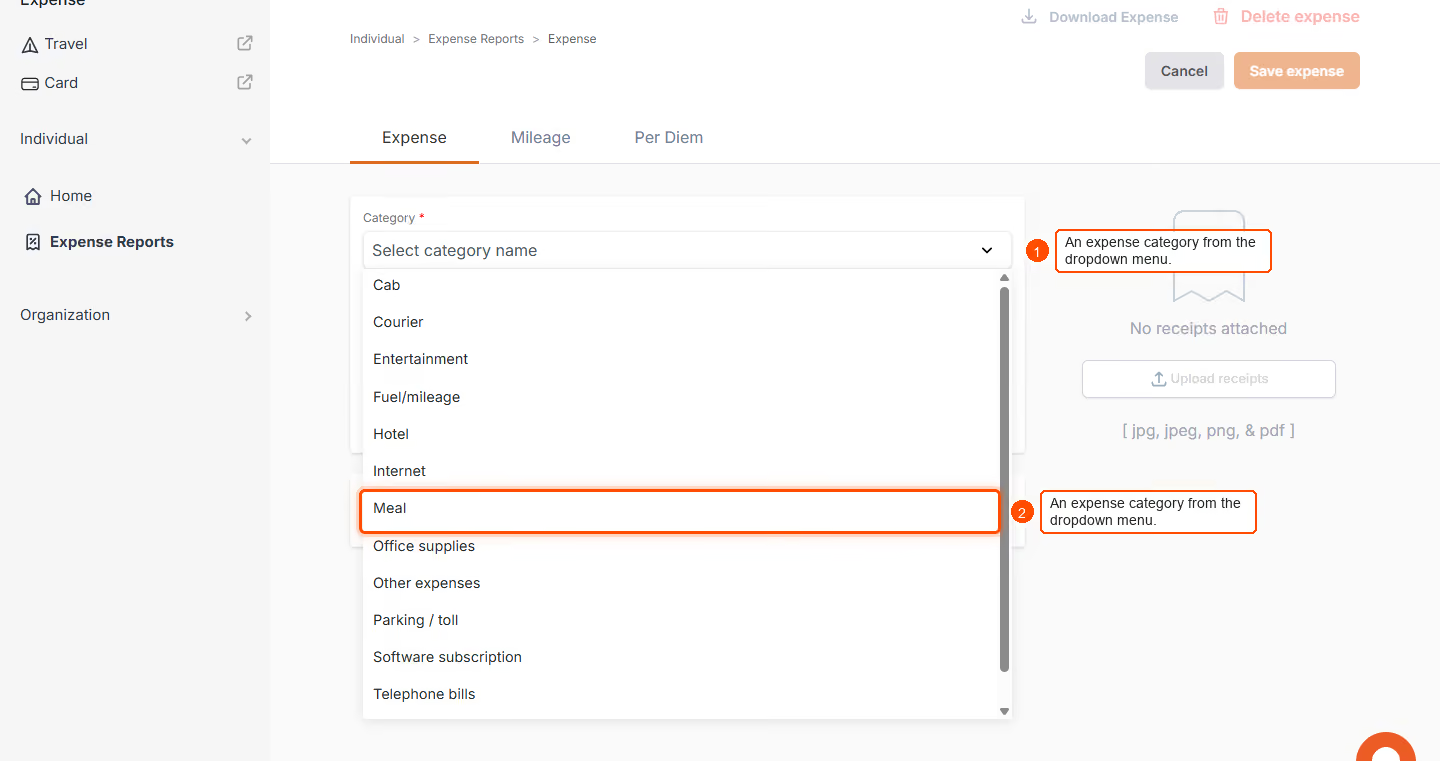
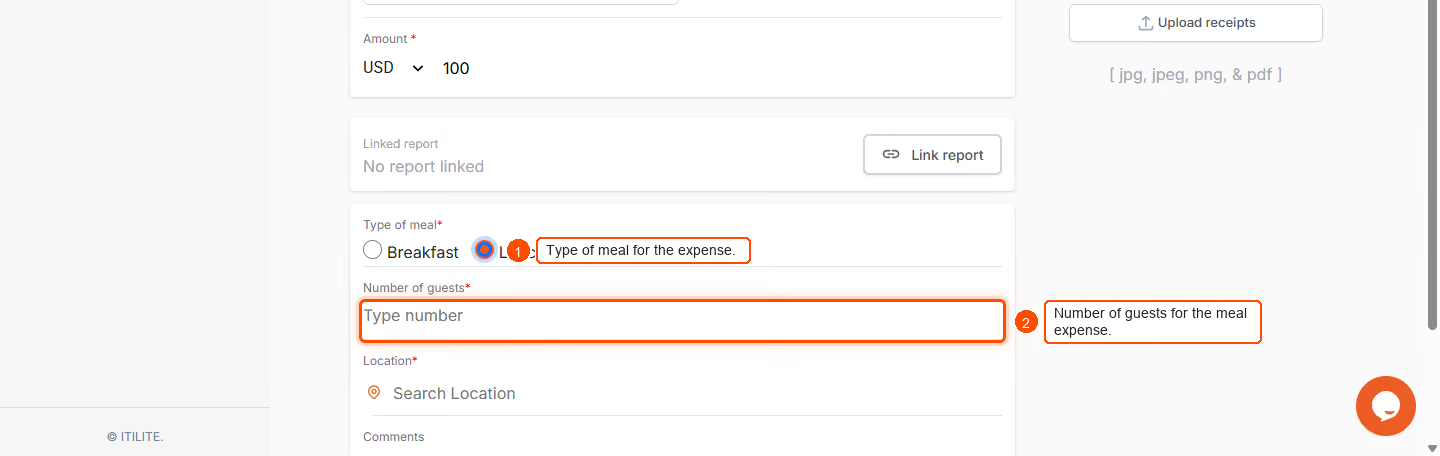
- Fill in the expense details.
- Click Save expense to save the details.
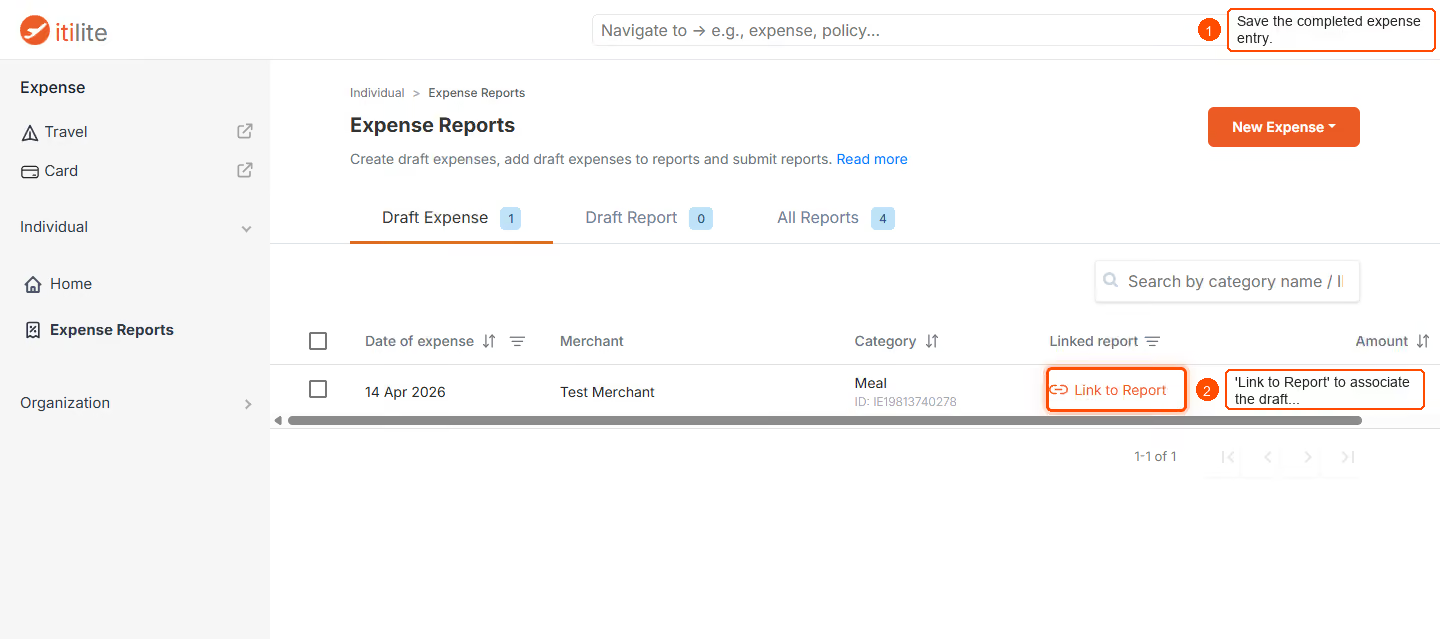
- After saving the expense, click Link to Report to associate this draft expense with an expense report.
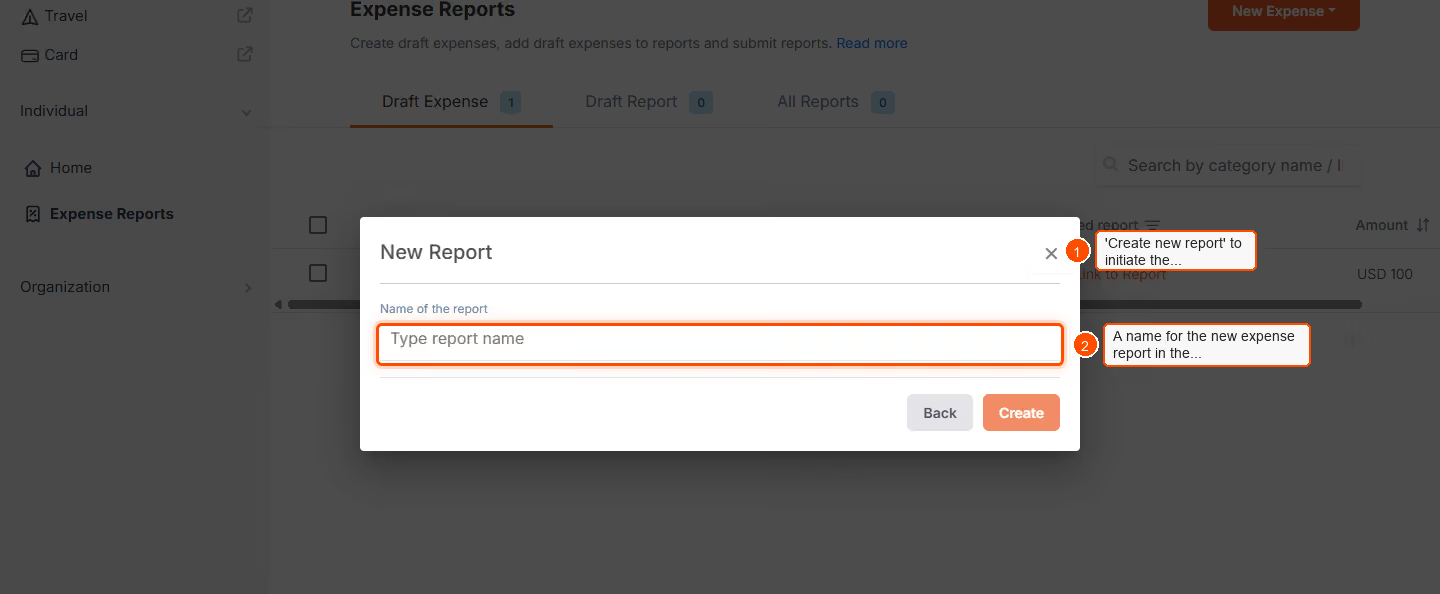
- Click Create new report.
- Enter a name for your new expense report in the Type report name field.
- Click Create to finalize the report creation.
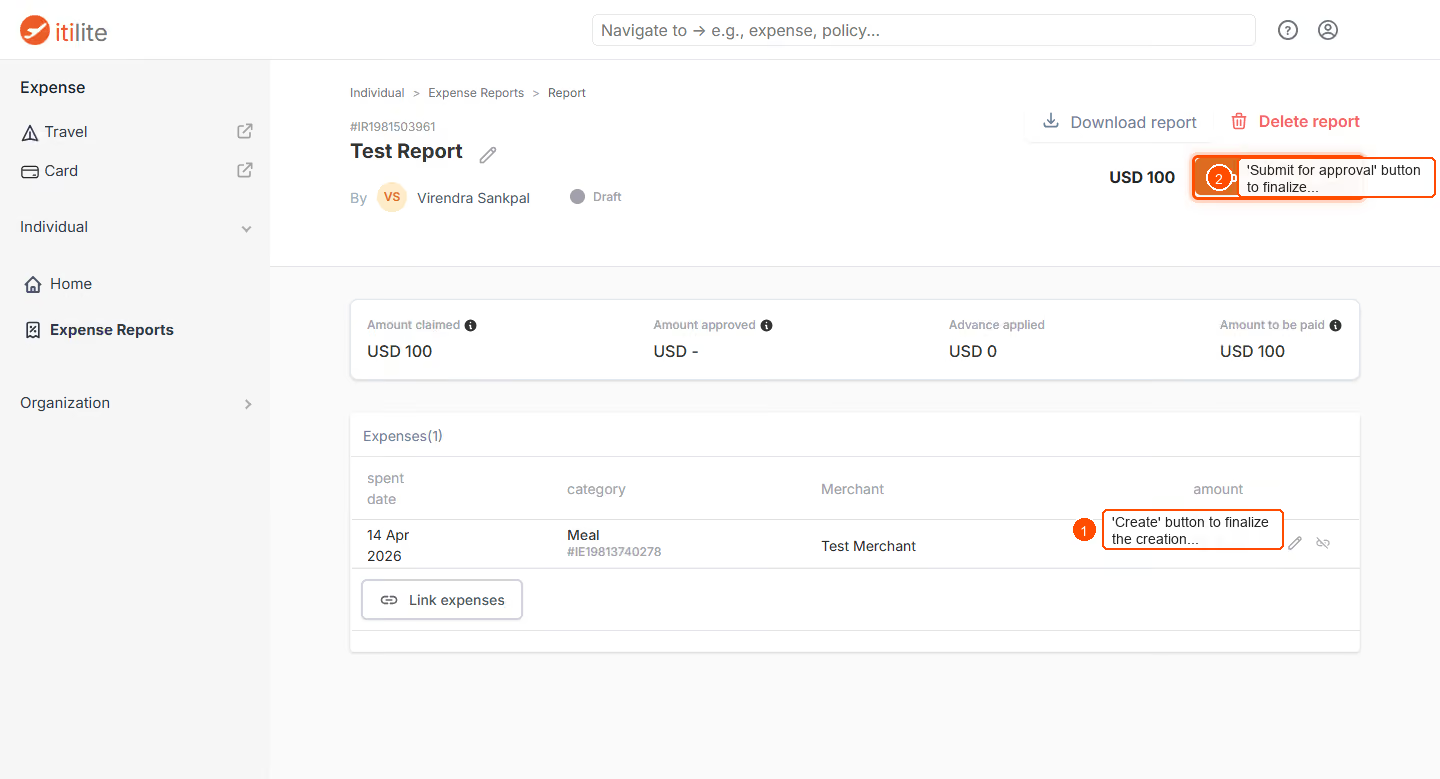
- Once the report is created and the expense is linked, click Submit for approval.
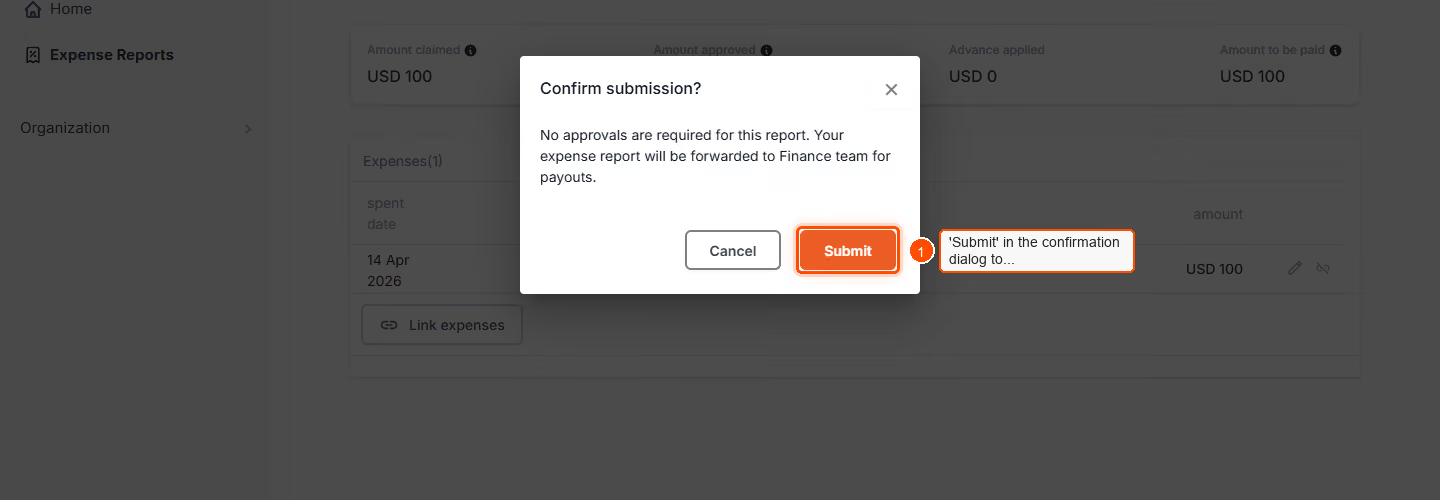
- In the confirmation dialog, click Submit to finalize the submission of your expense report.
Pro-Tips & Guardrails
NOTE: An expense report can only be submitted if all linked expenses are in a 'Completed' status, meaning all mandatory fields and receipts are filled. If any expense is 'Enrichment pending', the report cannot be submitted.
PRO-TIP: As an administrator, you can configure automatic expense report creation and submission. Even if auto-submission is enabled, users always have the option to manually submit any report that contains only 'Completed' expenses.
Verification & FAQs
After successful submission, you will see a confirmation message, and the report's status will change to 'Submitted' or 'Pending Approval'. It will then proceed through your company's predefined approval workflow.
Q: What happens after I submit an expense report?
A: Once submitted, the expense report enters your company's predefined approval workflow. Your manager or designated approver will receive a notification to review and approve it.
Q: Can I submit a report if some expenses are missing information?
A: No, a report can only be submitted when all linked expenses are in a 'Completed' state. If any expense is 'Enrichment pending' (missing mandatory fields or receipts), the report cannot be submitted.
Q: What types of expenses can I create?
A: ITILITE supports various expense types, including Standard Expense (e.g., meals, taxi), Mileage Expense (for personal vehicle use), and Per Diem (fixed daily allowance based on destination and days).
Q: How does automatic expense report submission work?
A: If enabled by your administrator, ITILITE can automatically create reports and link 'Completed' expenses. If auto-submission is also enabled, these reports will be automatically submitted at a frequency defined by the admin (e.g., daily, weekly, monthly).
Q: Can I manually submit a report even if auto-submission is enabled?
A: Yes, users always have the option to manually submit any report that has all its linked expenses in a 'Completed' state, regardless of whether auto-submission is configured.
Ready to take your Travel Management to next level
A fully integrated corporate travel management software that dramatically reduces spends while improving user experience