How to download a receipt/report in a pdf file?

This guide will walk you through the simple steps to download your expense reports, including all attached receipts, as a PDF file from your ITILITE account.
Step-by-step Guide
Follow these steps:
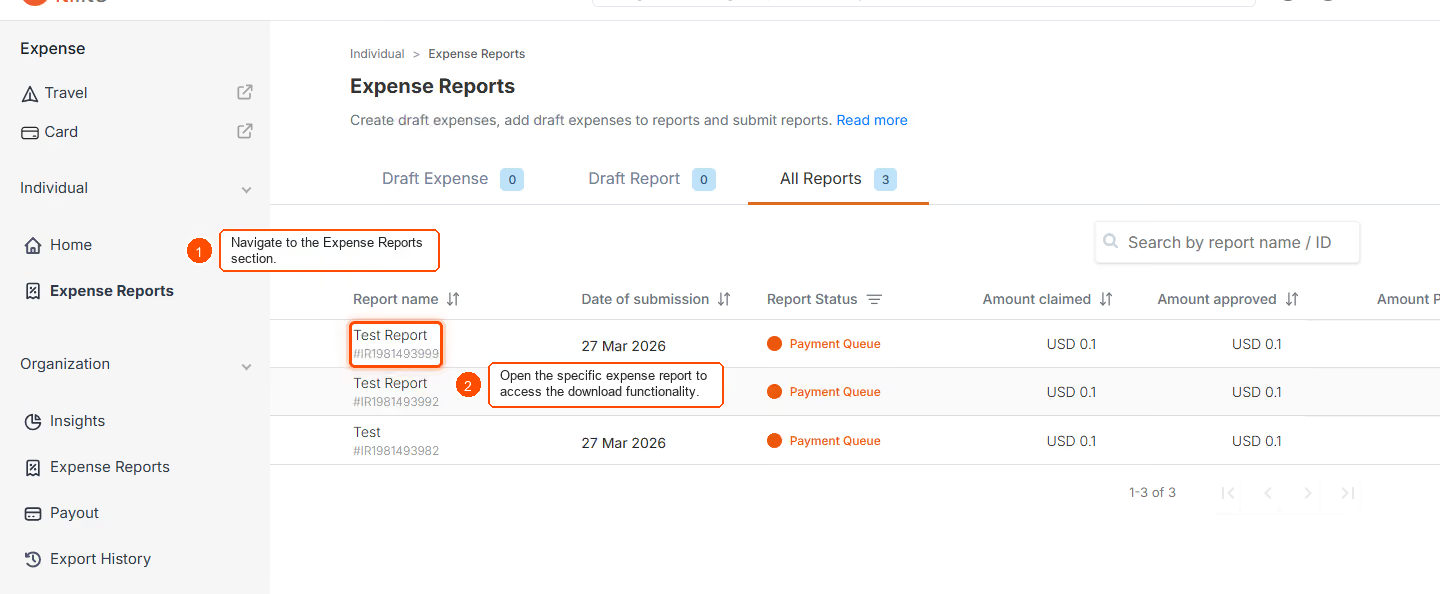
- From your Expense dashboard, click on Expense reports. Select the specific expense report you wish to download by clicking on its row in the list.
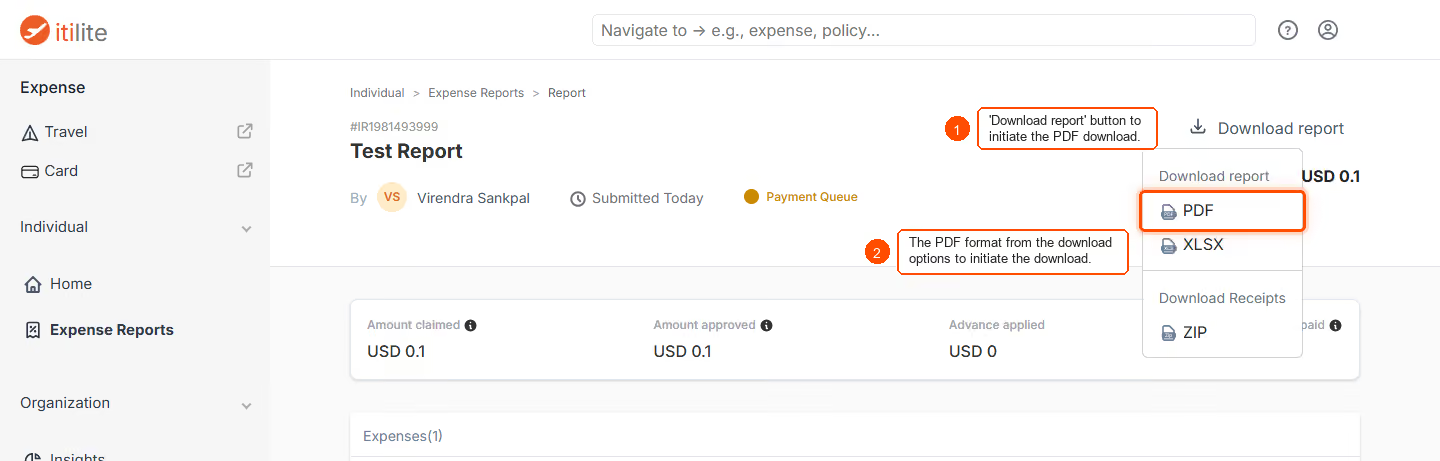
- On the report details page, locate and click the 'Download report' button at the top right. A prompt will appear. Select 'PDF' as your desired download format. The system will then generate and download the report as a PDF file to your device.
NOTE: Ensure all mandatory fields and receipts are filled or attached to the report before downloading to guarantee a complete and accurate PDF.
Verification & FAQs
After following the steps, verify that the PDF file has successfully downloaded to your device and contains all the expected expense details and attached receipts.
Q: What information is included in the downloaded PDF report?
A: The downloaded PDF will include all expense line items, attached receipts, and key report metadata such as employee details, amounts, and currency.
Q: Can I download a draft expense report as a PDF?
A: Yes, the PDF download option is available for both draft and submitted reports.
Ready to take your Travel Management to next level
A fully integrated corporate travel management software that dramatically reduces spends while improving user experience