How To Create A Per Diem Expense?

Creating a per Diem expense in ITILITE simplifies claiming fixed allowances for your business trips, eliminating the need to track every single receipt. ITILITE automatically calculates your allowance based on company policy, making the process quick and effortless.
Step-by-Step Guide
Follow these steps to easily create a per Diem expense in ITILITE:
- From your ITILITE dashboard, navigate to the Expenses tab and click the Create Expense button to open the expense creation panel. This is where you can choose between different expense types, including Standard Expense, Mileage Expense, and Per Diem.
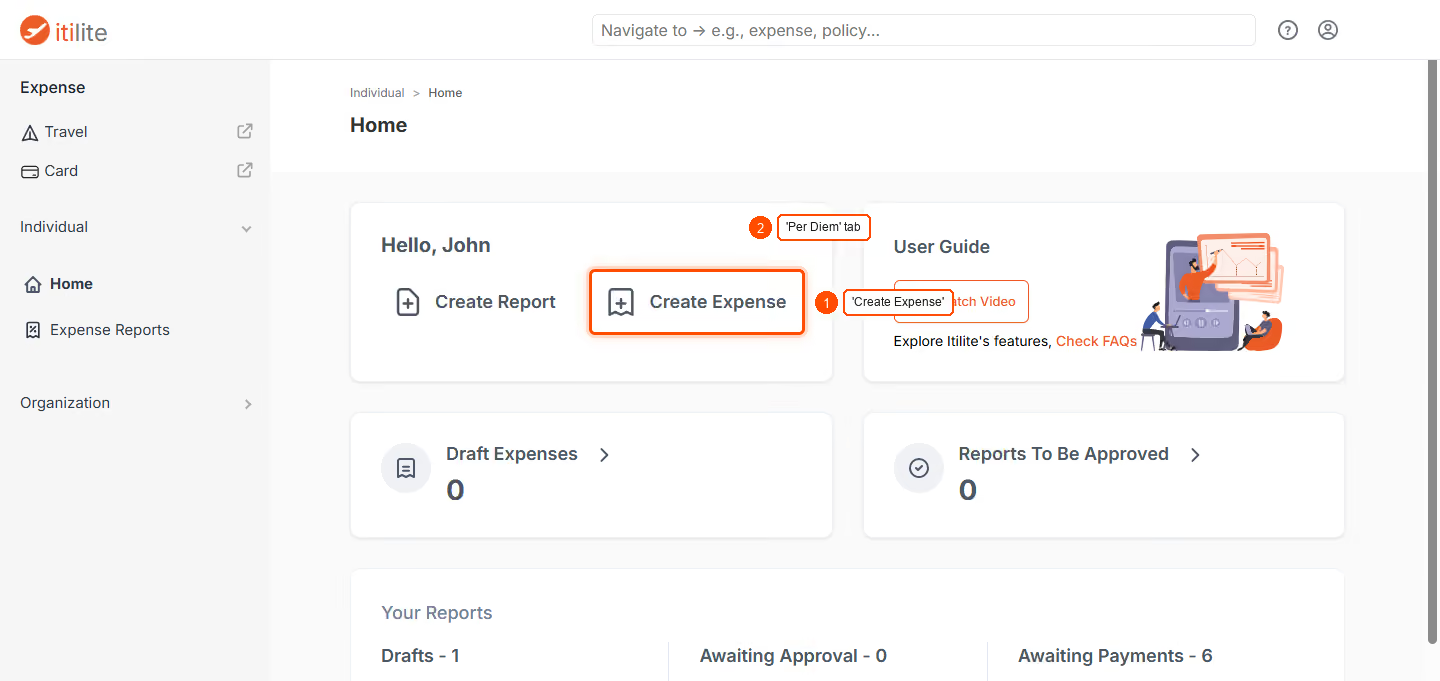
- Within the expense creation panel, select the Per Diem tab. This action will reveal the specific fields required to claim your per diem allowance, tailored to your company's policy.
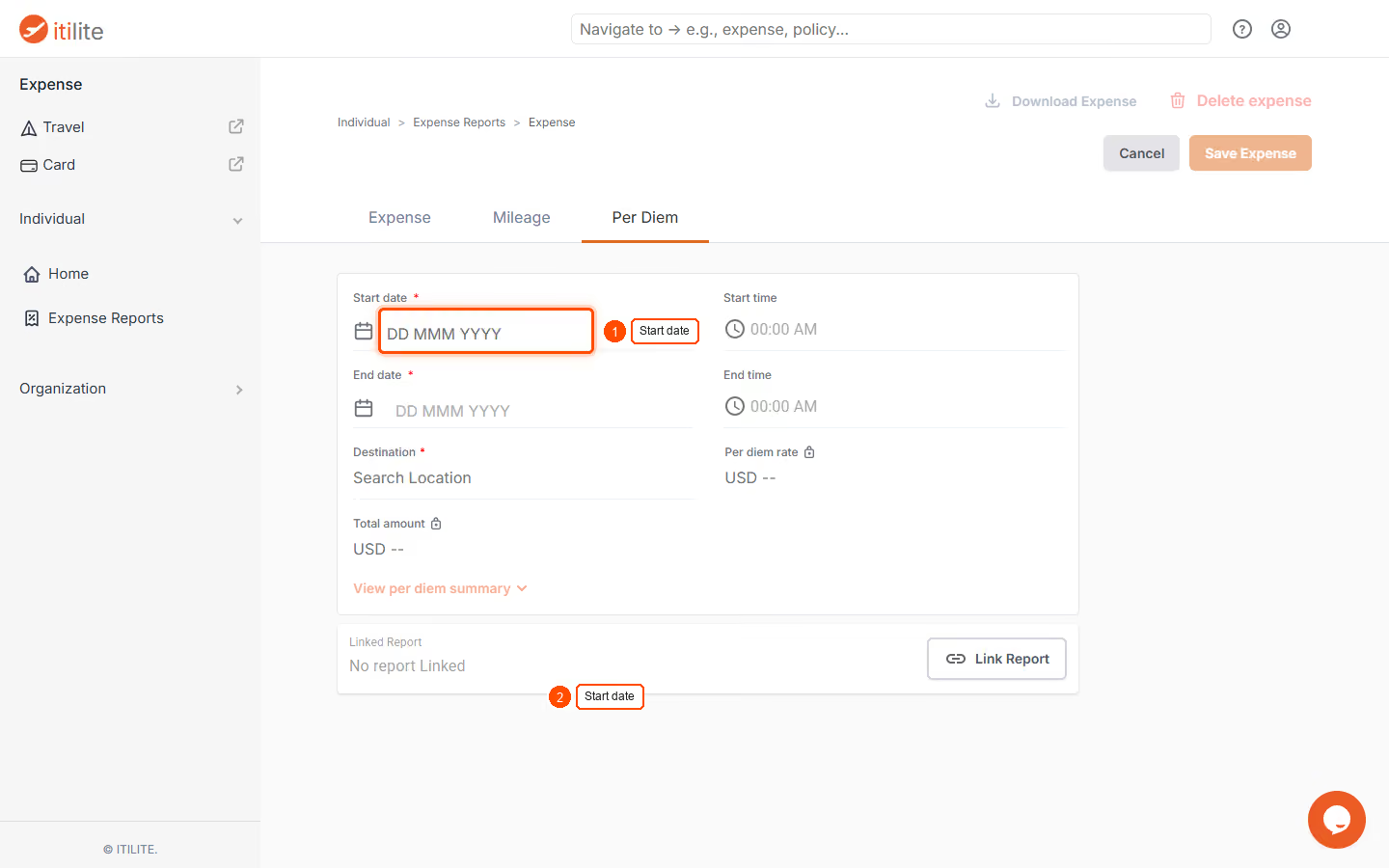
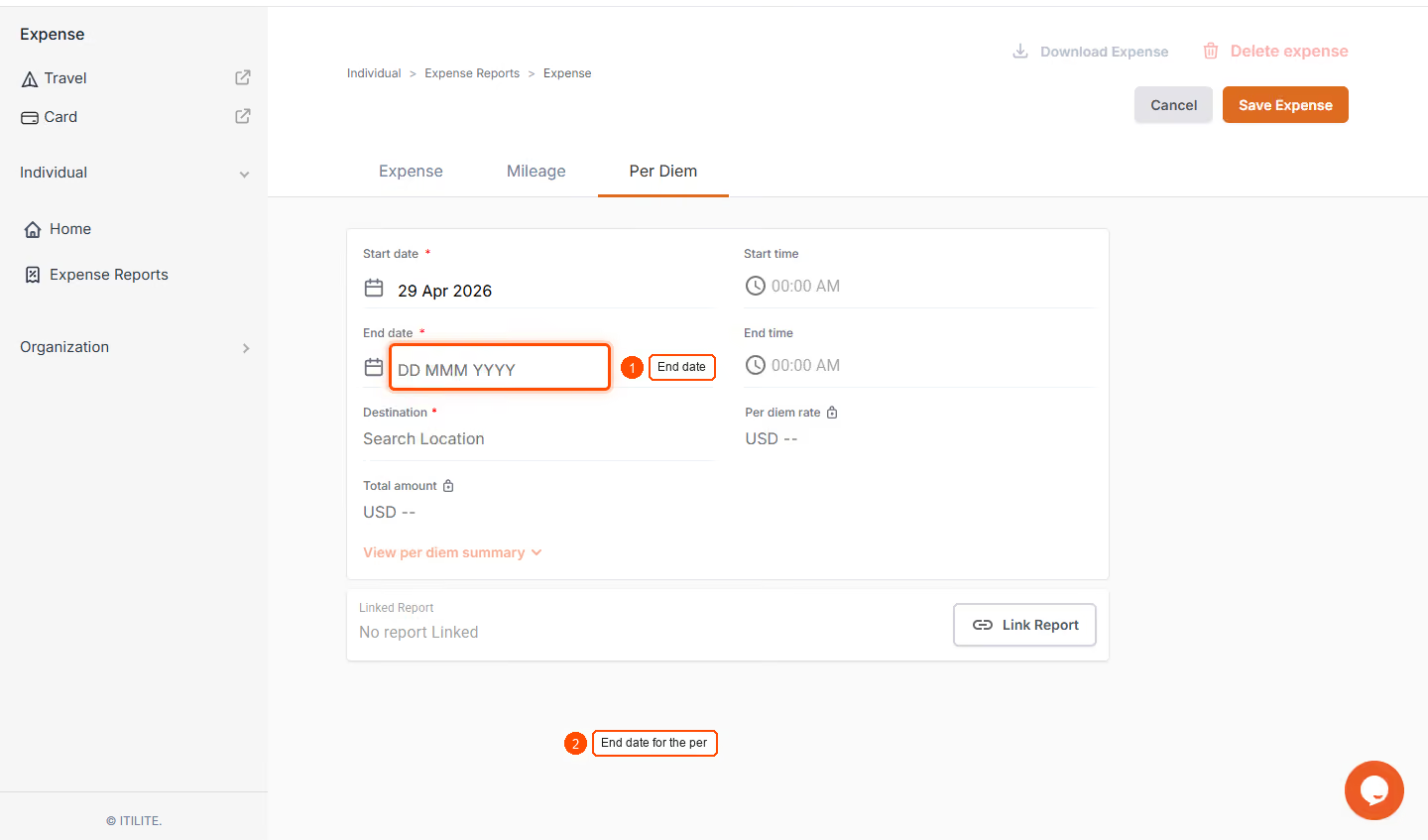
- Enter the trip duration by clicking on the Start Date and End Date fields and selecting the appropriate dates from the calendar. If configured by your company, you may also need to specify the Start Time and End Time for precise per diem calculations, especially for partial travel days.
- Next, specify your trip's Destination by typing the city or country into the "Search Location" field and selecting the correct option from the dropdown list. This information is crucial for ITILITE to apply the correct per diem rates based on your company's policy for that location.
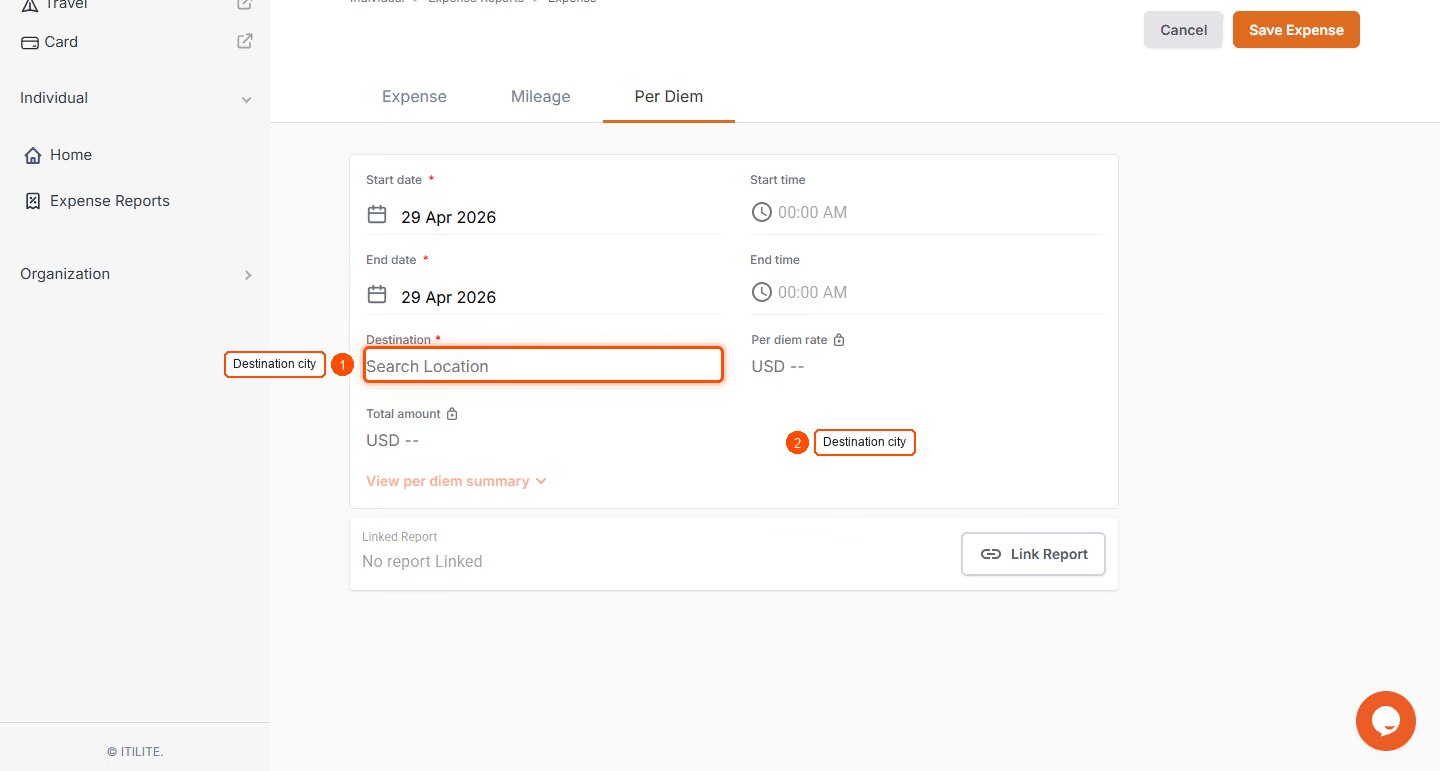
- As you fill in the required details, ITILITE will automatically calculate and display the Per Diem Amount based on your company's configured rates and duration slabs. Review this auto-calculated amount and fill in any additional Custom Fields your company may require, such as purpose of travel or project codes.
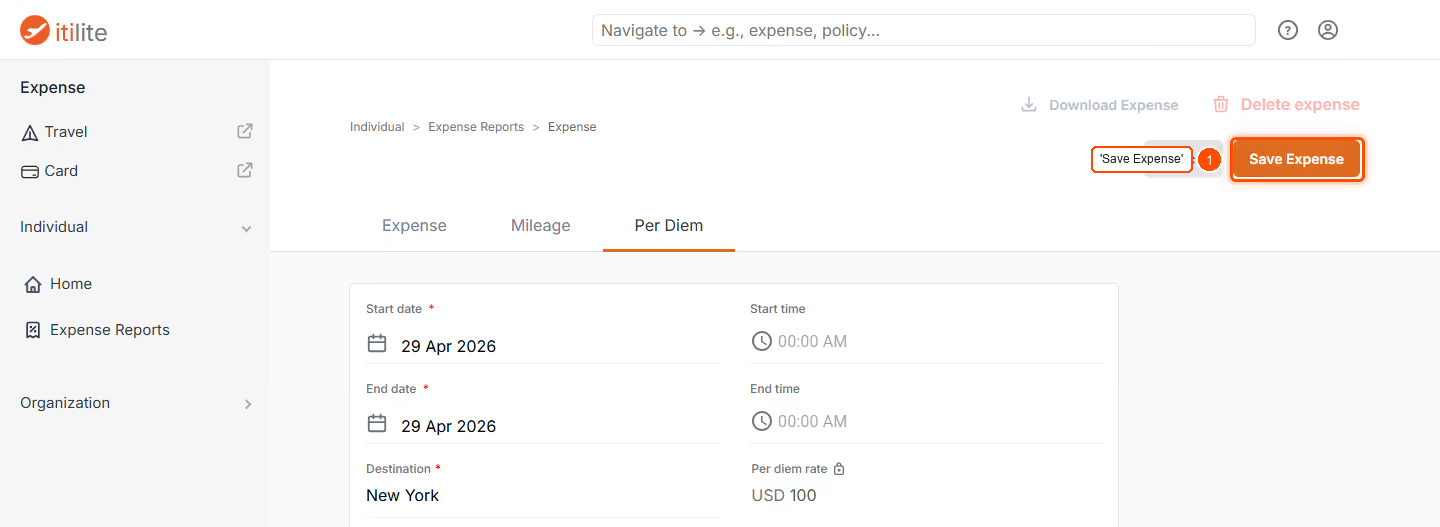
- Finally, click the Save Expense button. Your per diem expense will be saved, either as a standalone draft or directly linked to an existing Expense Report, ready for submission and approval.
Pro-Tips & Guardrails
NOTE: The ability to create per Diem expenses is controlled by your company's ITILITE administrator. If you do not see the Per Diem option, it might not be enabled for your organization. Additionally, while receipts are generally not required for per Diem, your company might configure custom fields to make them mandatory.
PRO-TIP: If your travel plans change, you can easily edit a saved per Diem expense. Modifying key fields like dates or destination will automatically trigger ITILITE to recalculate the per Diem amount, ensuring accuracy. You can also choose to link your per Diem expense to an existing report during creation or keep it as a draft to attach later.
Verification & FAQs
After successfully saving your per Diem expense, you will see a confirmation message, such as "Expense created successfully." The new per Diem entry will also immediately appear in your Draft Expenses list or within the Expense Report you selected, ready for review and submission.
Q: What exactly is a Per Diem expense?
A: A Per Diem expense is a fixed daily allowance provided by your company to cover typical travel costs like meals and incidental expenses, without requiring you to submit individual receipts for each item. ITILITE calculates this allowance based on your trip's destination and duration, adhering to your company's predefined policies.
Q: Are receipts always required for Per Diem expenses?
A: Generally, receipts are not a mandatory attribute for Per Diem expenses in ITILITE, as the system provides a fixed allowance. However, your company's specific policies might require you to attach receipts or other documents via custom fields, so always check your internal guidelines.
Q: How does ITILITE calculate the Per Diem amount?
A: ITILITE automatically calculates the Per Diem amount based on the Start Date, End Date, and Destination you provide. The platform applies your company's configured per Diem rates for that specific location and duration, including any partial-day percentages, to give you an accurate allowance.
Q: Can I modify a Per Diem expense after it's been created?
A: Yes, you can edit a Per Diem expense as long as its associated Expense Report is in an editable state (e.g., Draft or Sent Back). If you change critical details like the dates or destination, ITILITE will automatically recalculate the allowance to reflect the updated information.
Q: What happens to my Per Diem expense after I save it?
A: Once saved, your Per Diem expense will appear in your Draft Expenses or directly within the Expense Report you chose during creation. From there, it follows the standard expense lifecycle: you can attach it to a report, submit the report for approval, and track its status through to payout.
Ready to take your Travel Management to next level
A fully integrated corporate travel management software that dramatically reduces spends while improving user experience