How to change my password?

This article provides a step-by-step guide on how to change your password within your ITILITE account.
Interactive Guide
Follow these steps:
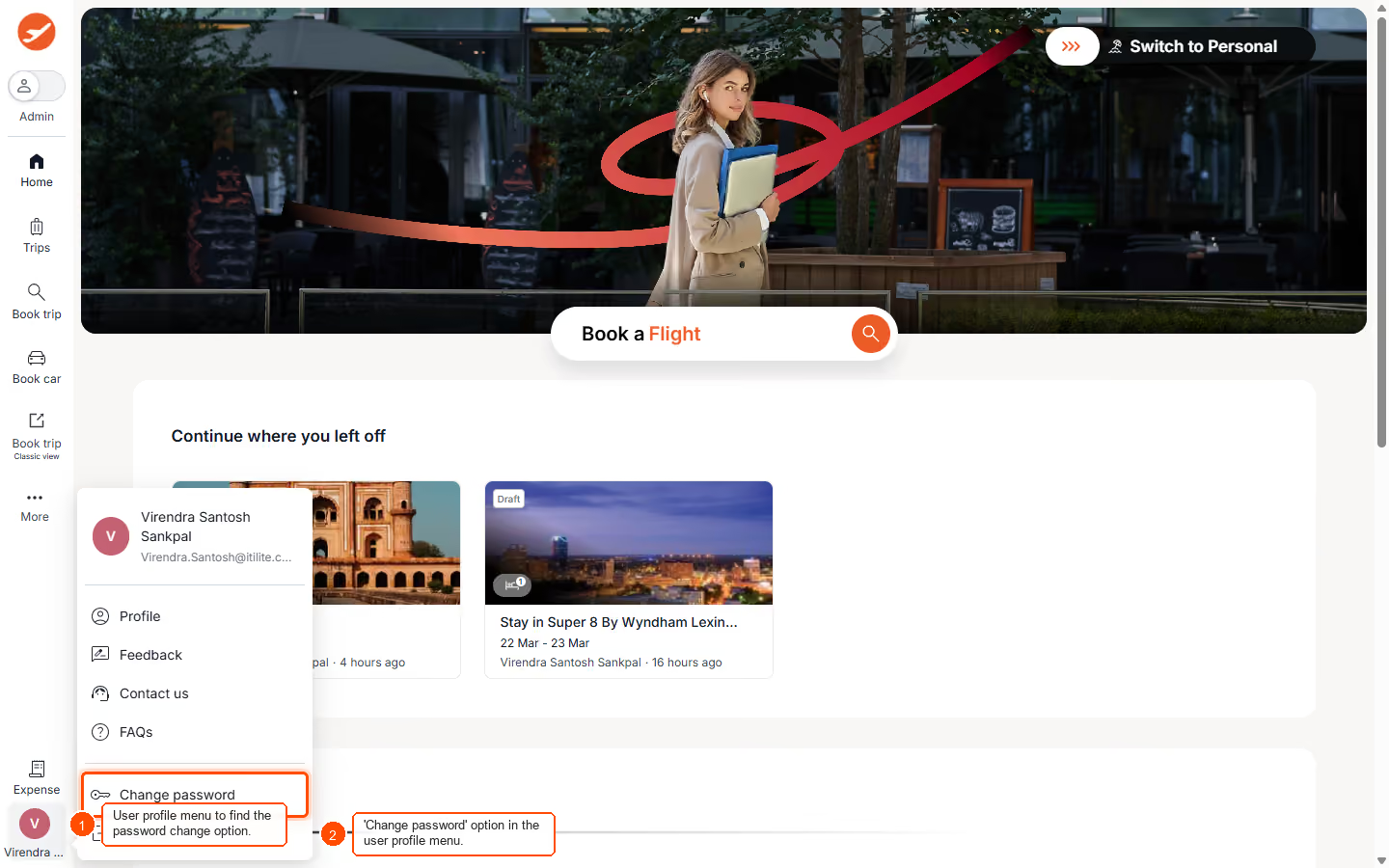
- Click on the user profile menu to find the password change option.
- Click on the 'Change password' option in the user profile menu.
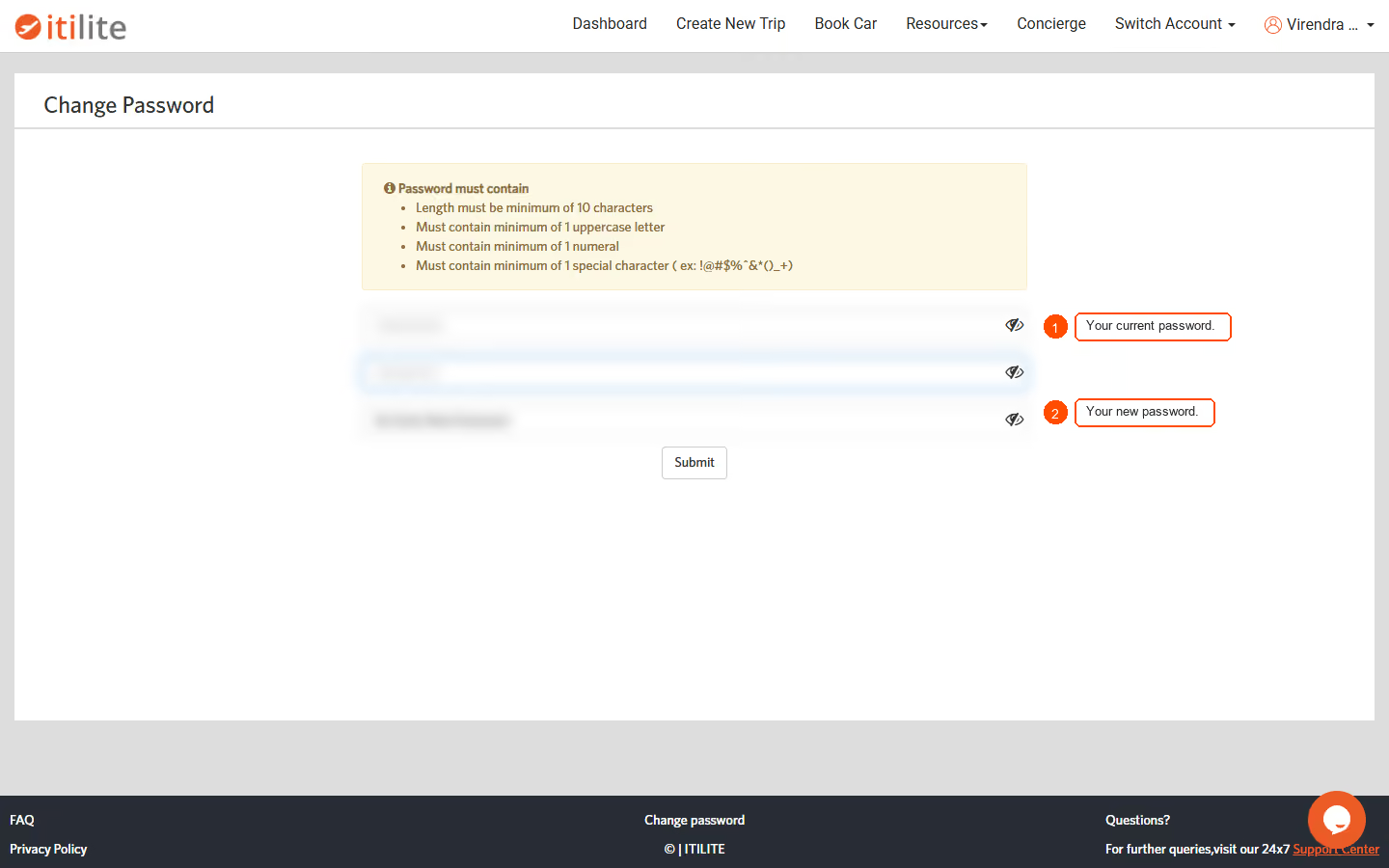
- Enter your current password.
- Enter your new password.
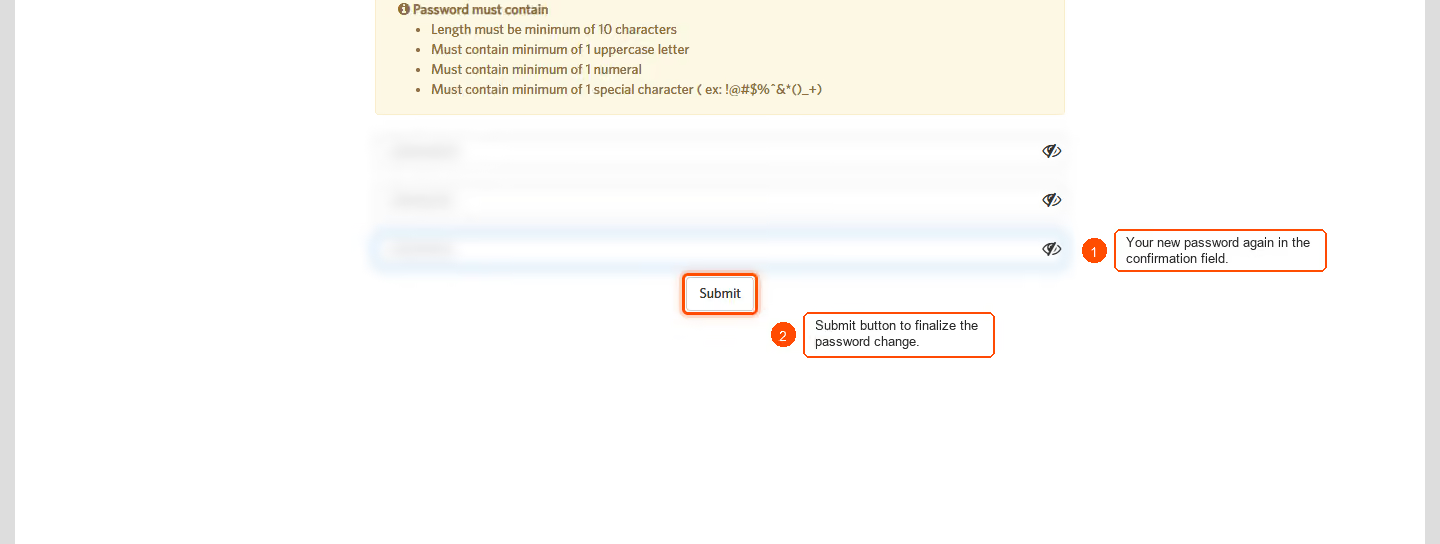
- Enter your new password again in the confirmation field.
- Click the Submit button to finalize the password change.
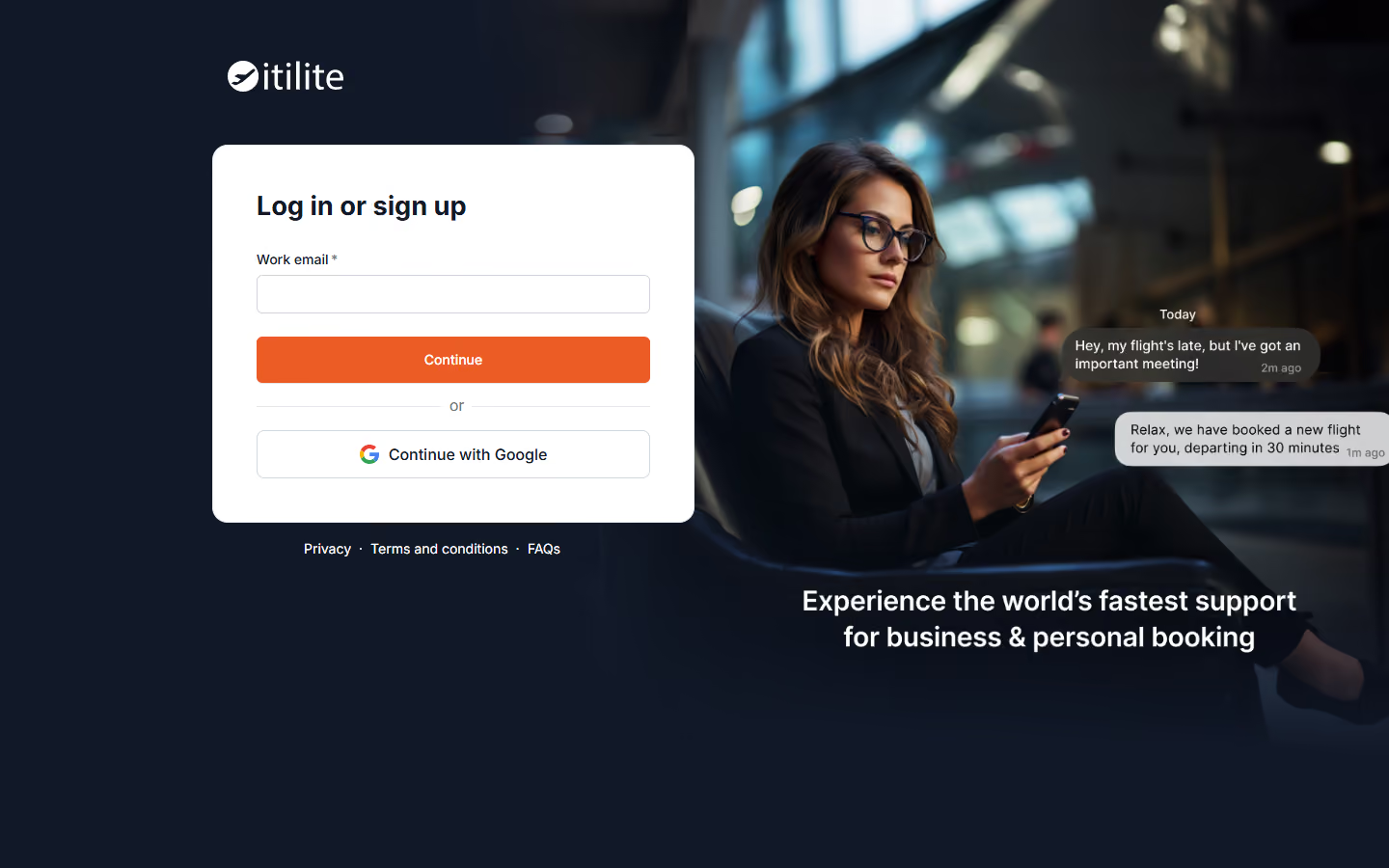
- You will be redirected to the login page, indicating your password has been successfully updated.
Pro-Tips & Guardrails
Note: Ensure you remember your new password immediately after changing it.
Pro-Tip: Choose a strong, unique password that combines uppercase and lowercase letters, numbers, and symbols to enhance security.
Verification & FAQs
After clicking 'Submit', you will be redirected to the login page. Attempt to log in with your new password to verify the change.
Q: What if I forget my current password?
A: If you have forgotten your current password, please use the 'Forgot Password' link on the ITILITE login page to reset it.
Q: How often should I change my password?
A: For security best practices, it is recommended to change your password every 3-6 months, or immediately if you suspect unauthorized access.
Q: Are there any password requirements?
A: ITILITE typically requires passwords to be a minimum of 10 characters, including a mix of uppercase letters, lowercase letters, numbers, and special characters.
Ready to take your Travel Management to next level
A fully integrated corporate travel management software that dramatically reduces spends while improving user experience