How to add users?

This guide will walk you through the process of adding new users to your ITILITE account, both individually and in bulk, ensuring your team can start using the platform smoothly.
Step-by-Step Guide
Follow these steps to add users to your ITILITE account. You can add users individually or in bulk.
Adding an Individual User:
- Log in to your ITILITE account and switch to Admin mode.

- Navigate to the Account Configuration > User management > Users.
- Click the "+ Add user" button.
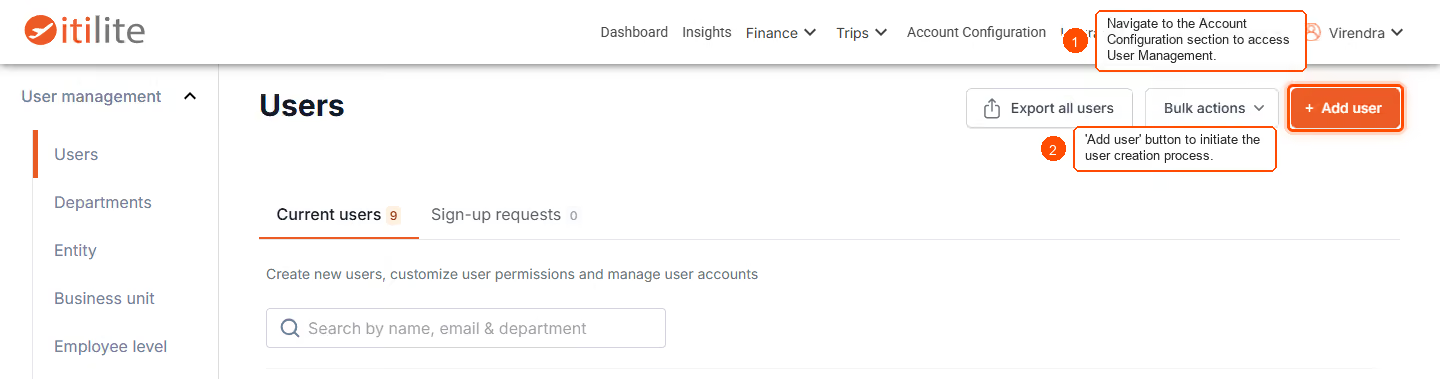
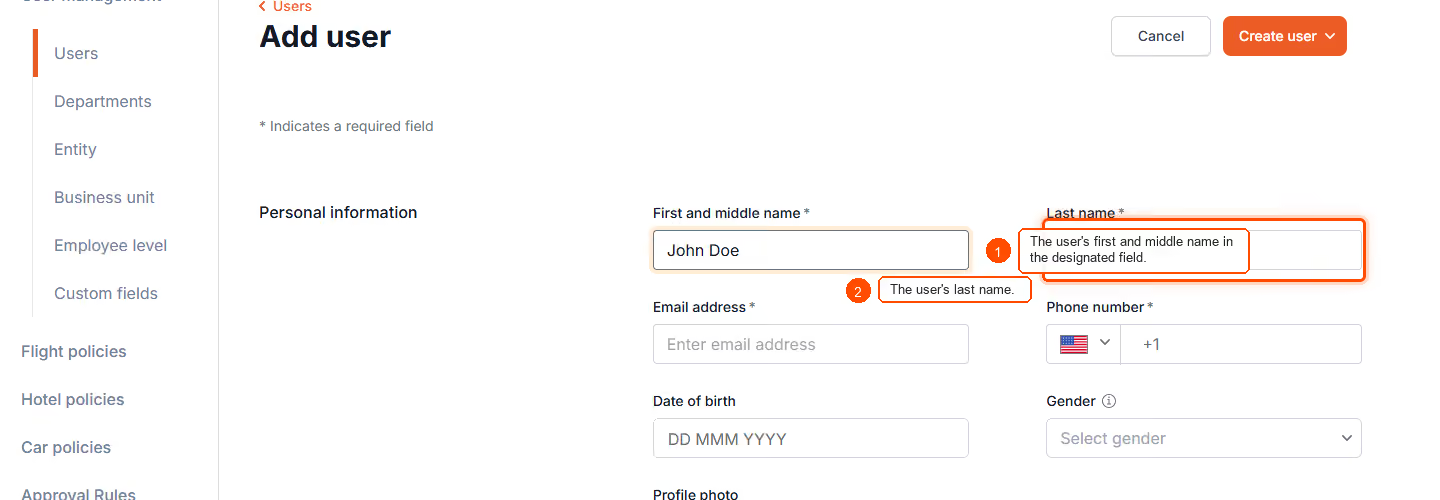
- Enter the user's first name and last name.
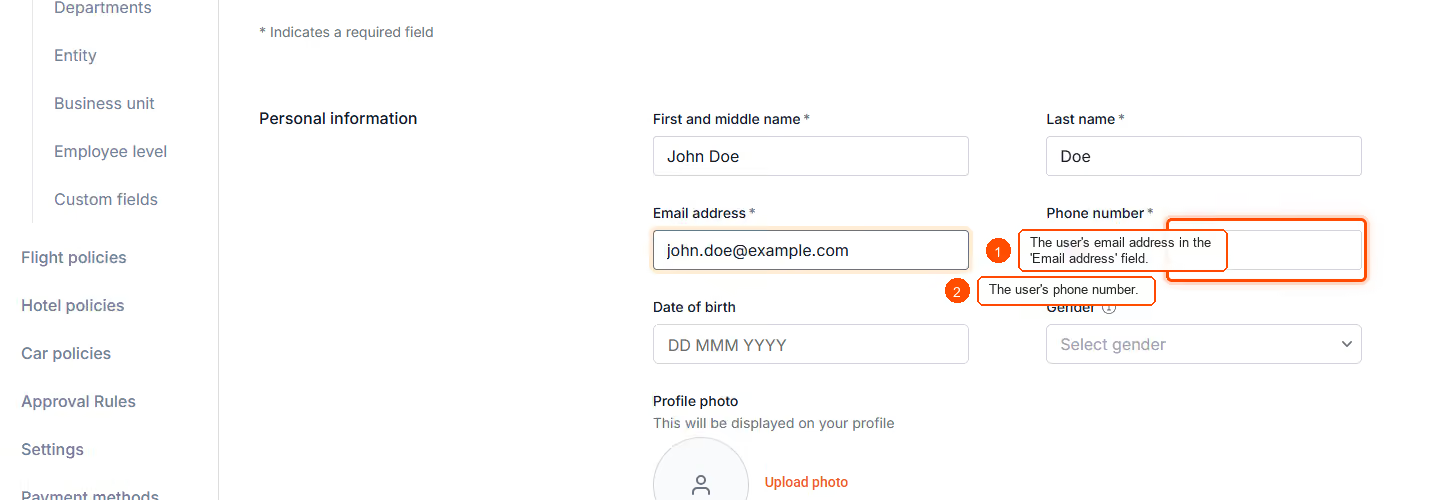
- Provide the user's email address and phone number.
- Select the appropriate Employee Level for the new user.
- Choose the Entity for the user from the dropdown.
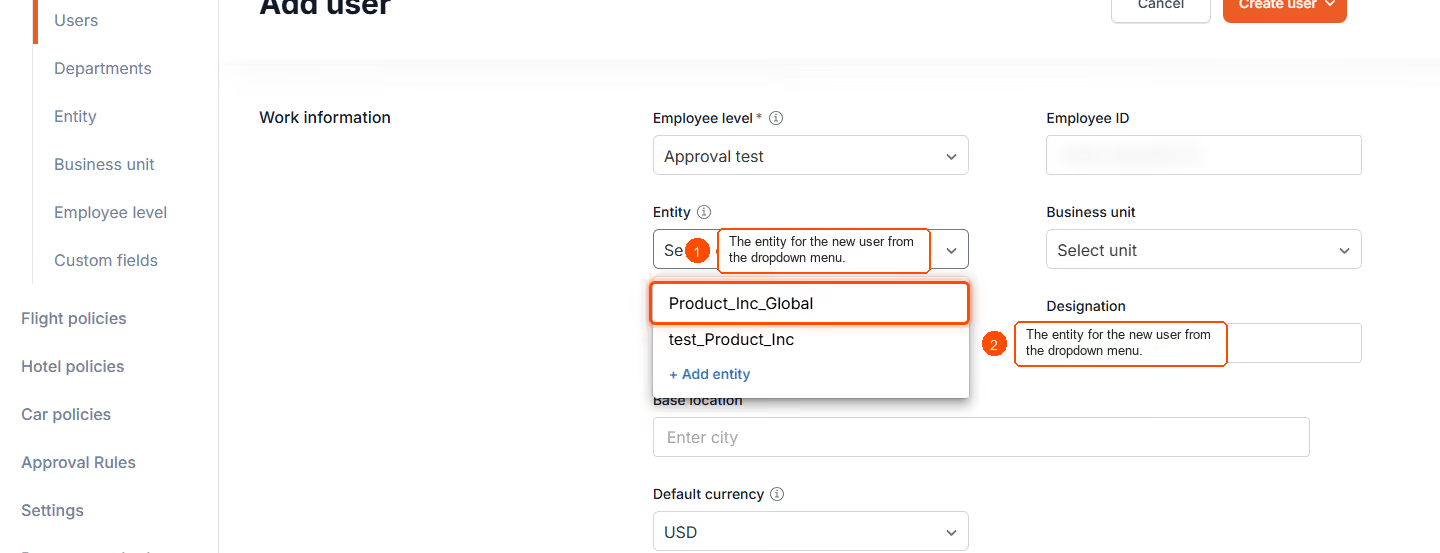
- Choose the relevant Business Unit from the dropdown.
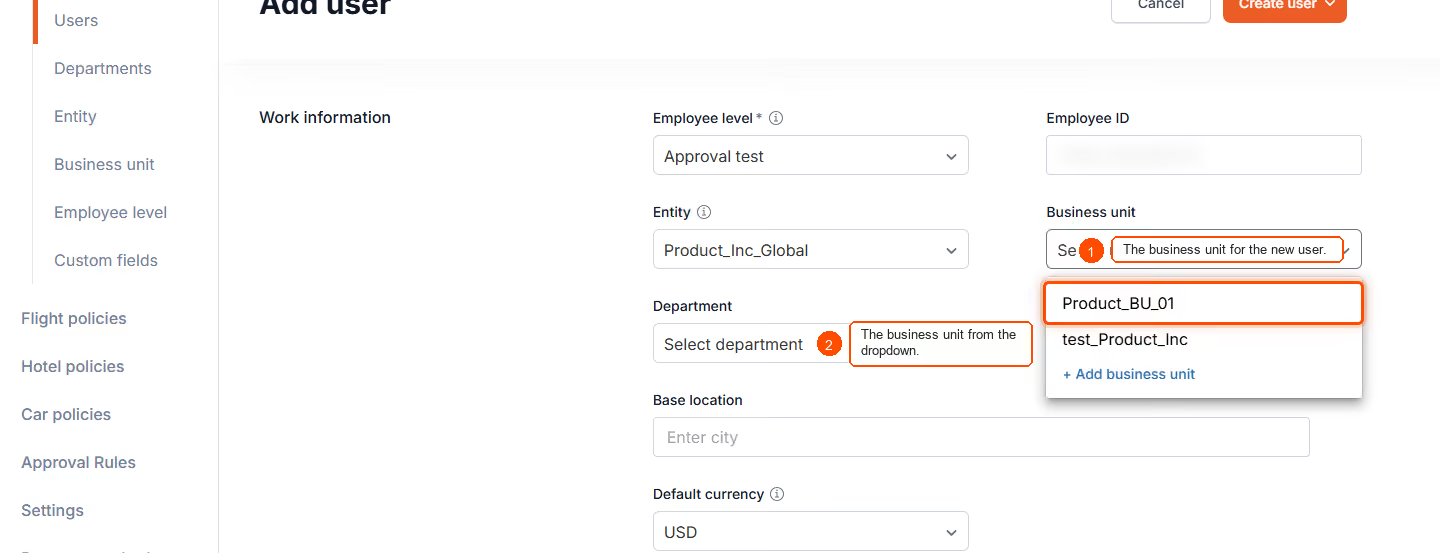
- Choose the Department for the user.
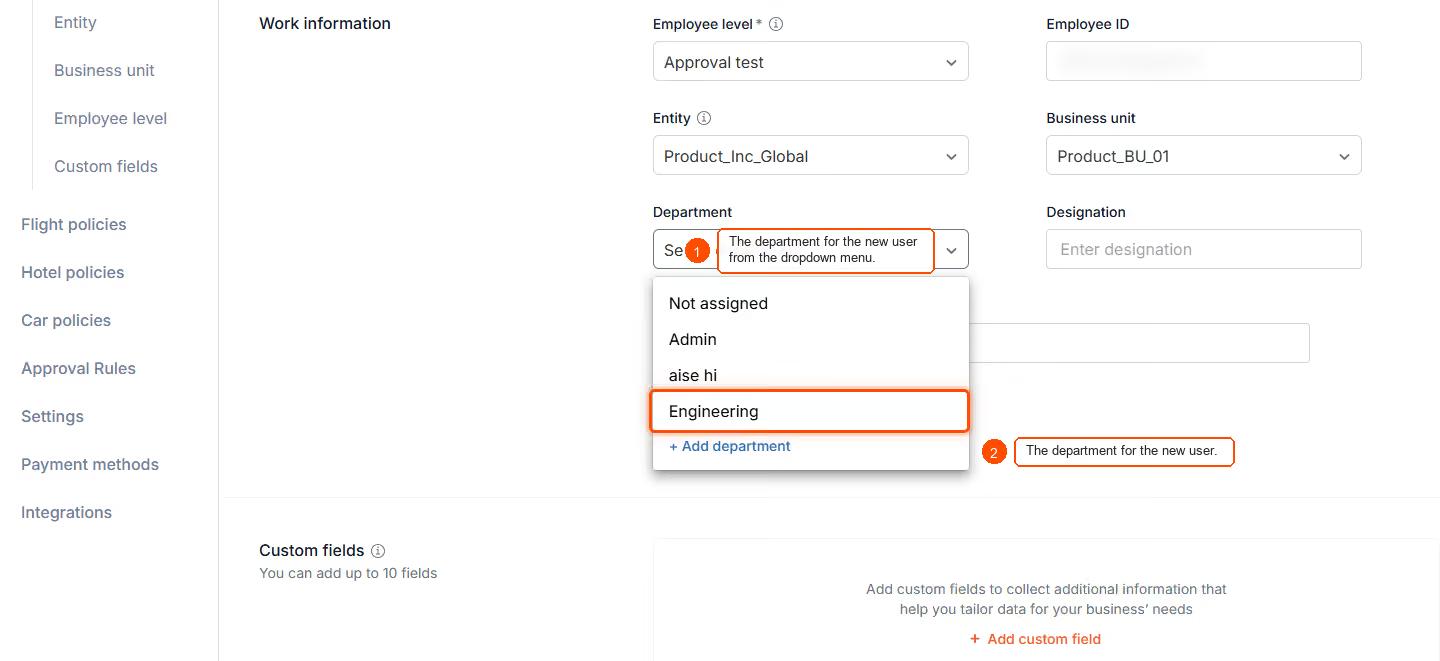
- Enter the user's Designation.
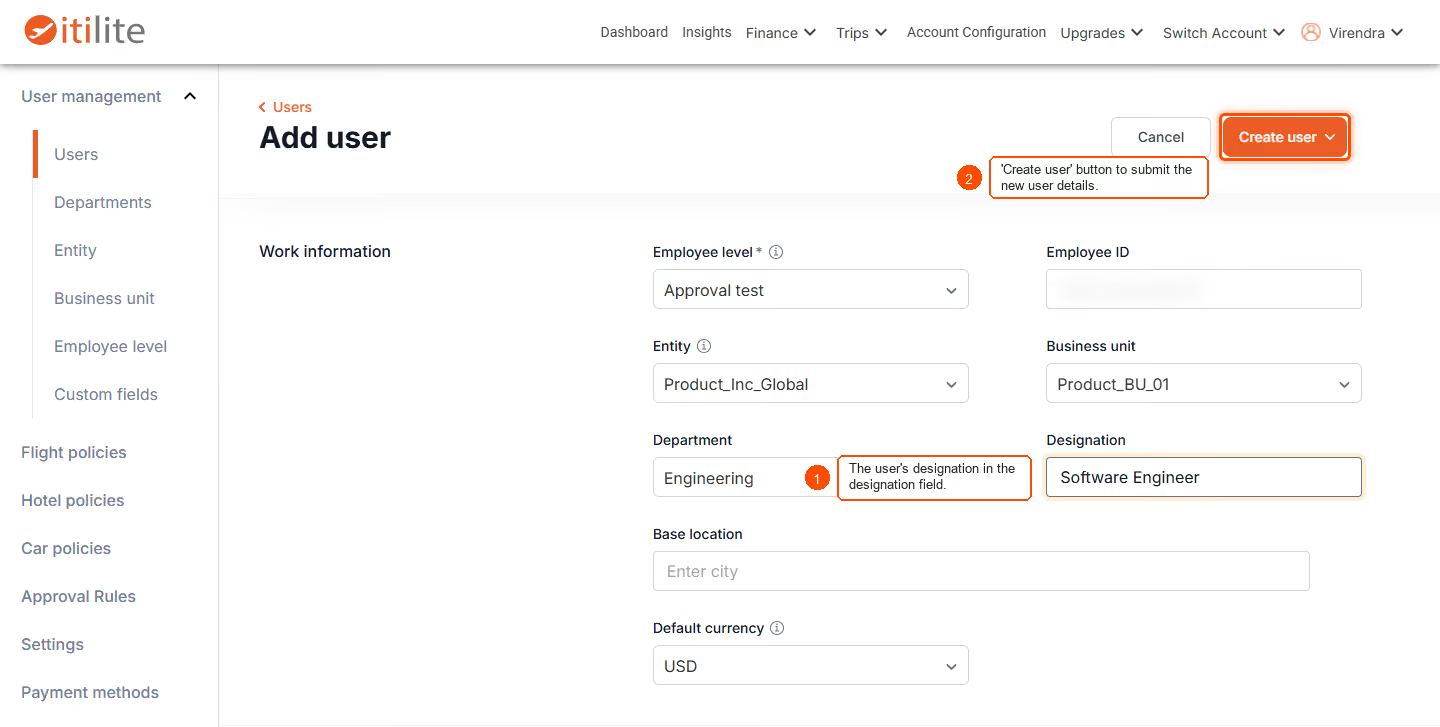
- Click the "Create user" button to finalize adding the new user. You may choose to add the user without sending them an invitation email.
Adding Multiple Users in Bulk:
- In the Bulk Actions dropdown, click on Import Users option and then download the template.
- Fill in the mandatory user information in the downloaded template file.
- Select your completed file and upload it.
- Read more about how to add multiple users
Pro-Tips & Guardrails
Note: When adding users in bulk, you cannot upload their membership details.
Pro-Tip: By default, newly added users are assigned the "Traveler" role. You can assign other roles like "Admin" or "Finance Admin" if needed.
Verification & FAQs
After adding users, you should see a success notification, and the new users will appear in your Employees list.
Q: Who can add users in ITILITE?
A: Travel Admins have the permissions to add users to the ITILITE platform.
Q: What is the default role for a newly added user?
A: By default, all newly added users are assigned the "Traveler" role. Roles can be changed later by an Admin.
Q: Can I add multiple users at once?
A: Yes, ITILITE supports bulk user uploads using an Excel template, which is ideal for adding many users efficiently.
Q: Are there any limitations when adding users in bulk?
A: Currently, bulk upload does not support adding membership details.
Ready to take your Travel Management to next level
A fully integrated corporate travel management software that dramatically reduces spends while improving user experience