How to add my passport information?

This guide will walk you through the process of adding or updating your passport information in your ITILITE profile, ensuring you're ready for international travel.
Step-by-Step Guide
Follow these steps:
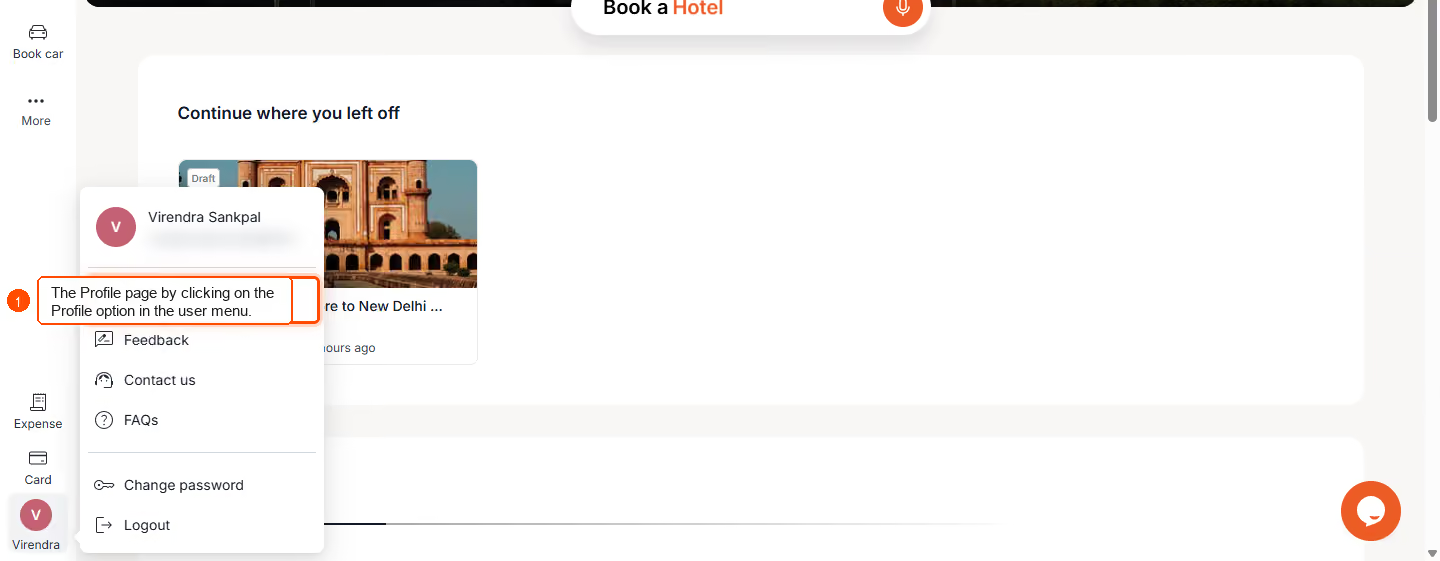
- Access Your Profile: Click on your name or avatar in the top-right corner of the ITILITE dashboard, then select Profile from the dropdown menu.
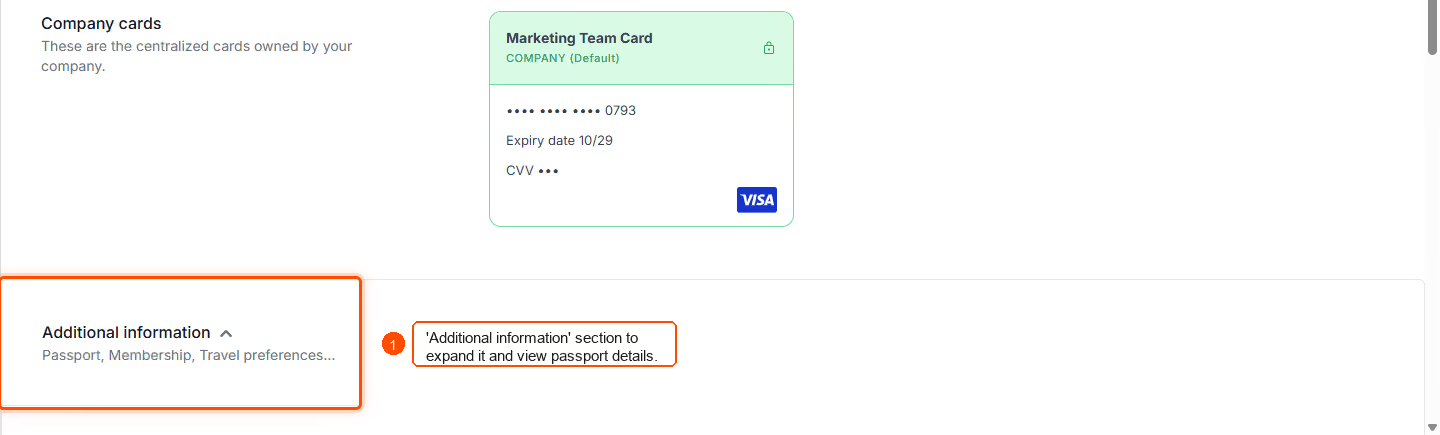
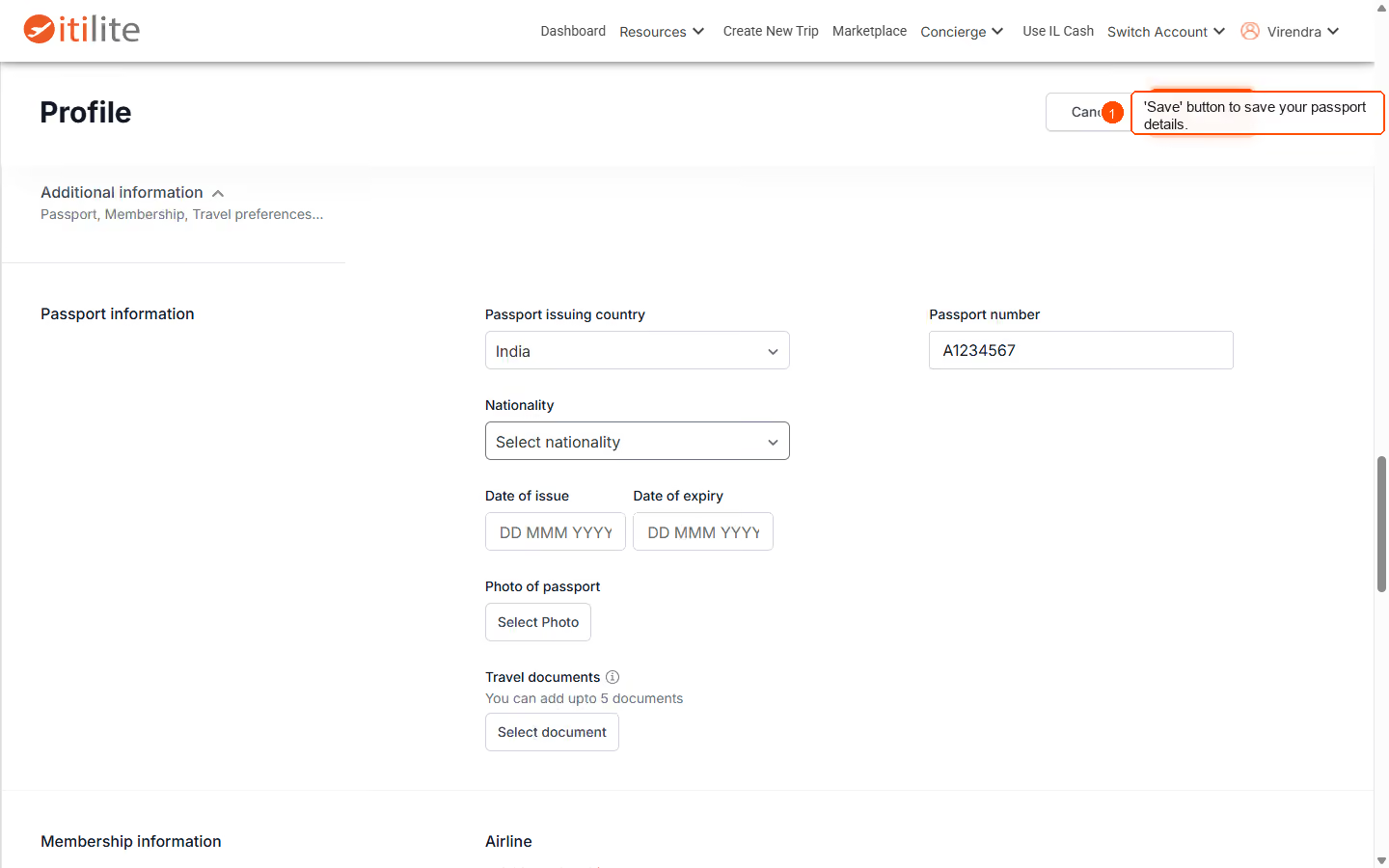
- Expand Additional Information: On your Profile page, locate and click the Additional information section to expand it and view details related to your travel documents.
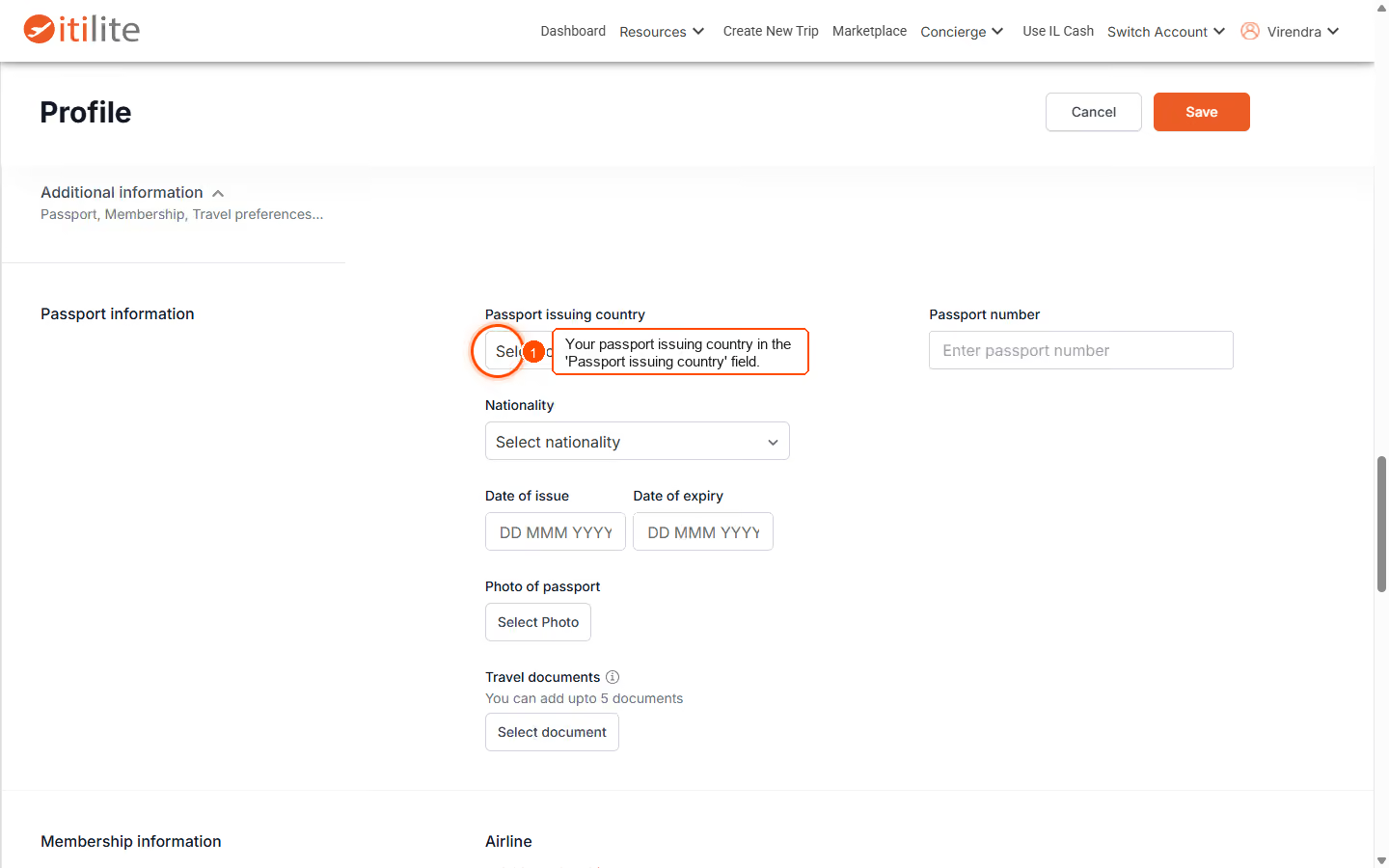
- Enter Passport Issuing Country: In the Passport issuing country field, enter the country that issued your passport.
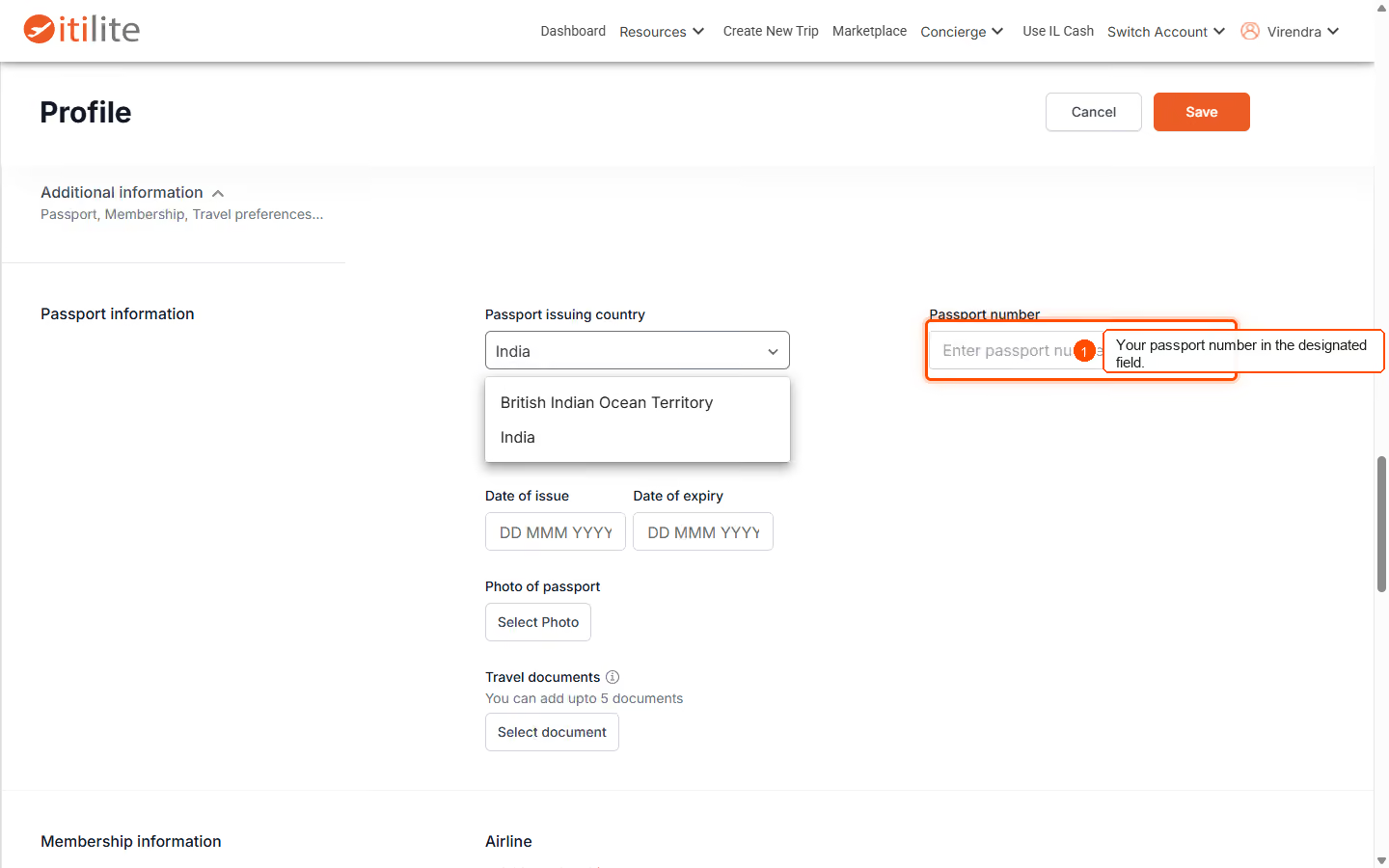
- Input Passport Number: Enter your passport number into the designated Passport number field. Update all relevant information here.
- Save Your Details: Once you have entered the required passport information, click the Save button to update your profile. A "Profile updated successfully" notification will appear on your screen, confirming that your passport details have been saved.
Pro-Tips & Guardrails
NOTE: Passport details are mandatory for international trips, especially for India-based users. If these details are missing, ITILITE will prompt you to add them before you can complete an international booking.
PRO-TIP: When adding or updating your passport information, ensure you also provide the Passport Issue Date and Expiry Date, following the configured date format. The Passport Number must be between 7 and 15 alphanumeric characters with no special characters. The Passport Issuing Country field should not contain numbers and only allows specific special characters such as `( ) & ' - ,`.
Verification & FAQs
After saving, you can verify that your passport details are correctly displayed within the Additional information section of your profile.
Q: Why do I need to add my passport information?
A: Passport details are mandatory for international trips, particularly for India-based users, to ensure smooth booking and compliance with travel regulations.
Q: What are the specific requirements for the Passport Number field?
A: The Passport Number must be between 7 and 15 alphanumeric characters and should not include any special characters.
Q: Are there any restrictions for the Passport Issuing Country field?
A: Yes, the Passport Issuing Country field should not contain numbers and only allows specific special characters such as `( ) & ' - ,`.
Q: Can I update my passport details while booking a trip?
A: If your passport details are missing, the system will prompt you to add them during the international trip booking process.
Q: What if I cannot find the option to add or edit my passport information?
A: While employees can generally update their own profile details, certain fields or access might be role-based. If you encounter issues, please contact your company's ITILITE administrator.
Ready to take your Travel Management to next level
A fully integrated corporate travel management software that dramatically reduces spends while improving user experience