How do I update my mobile number?

This article guides you through the process of updating your mobile number within your ITILITE profile settings.
Interactive Guide
Follow these steps:
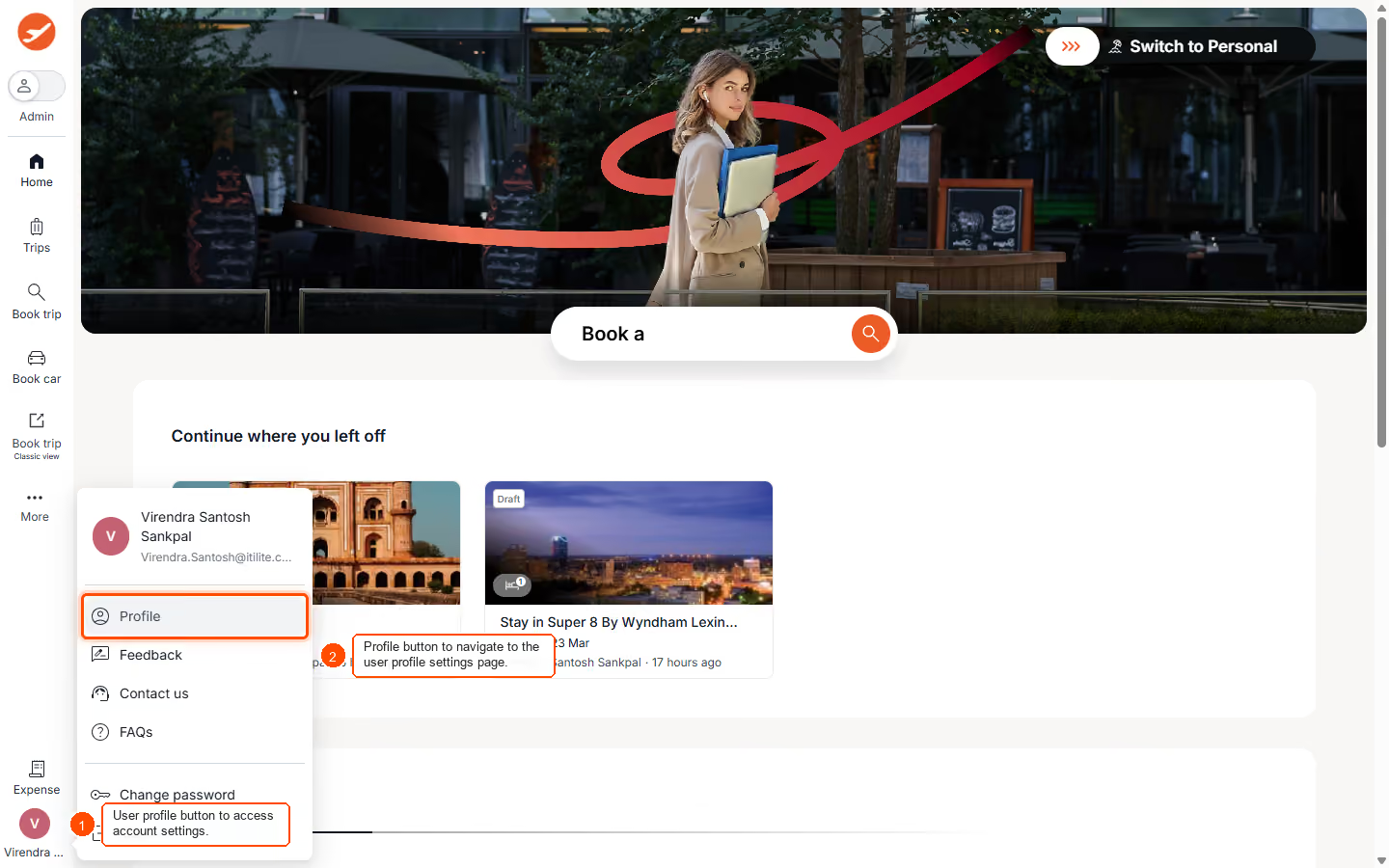
- Click the Profile button to navigate to the user profile settings page.
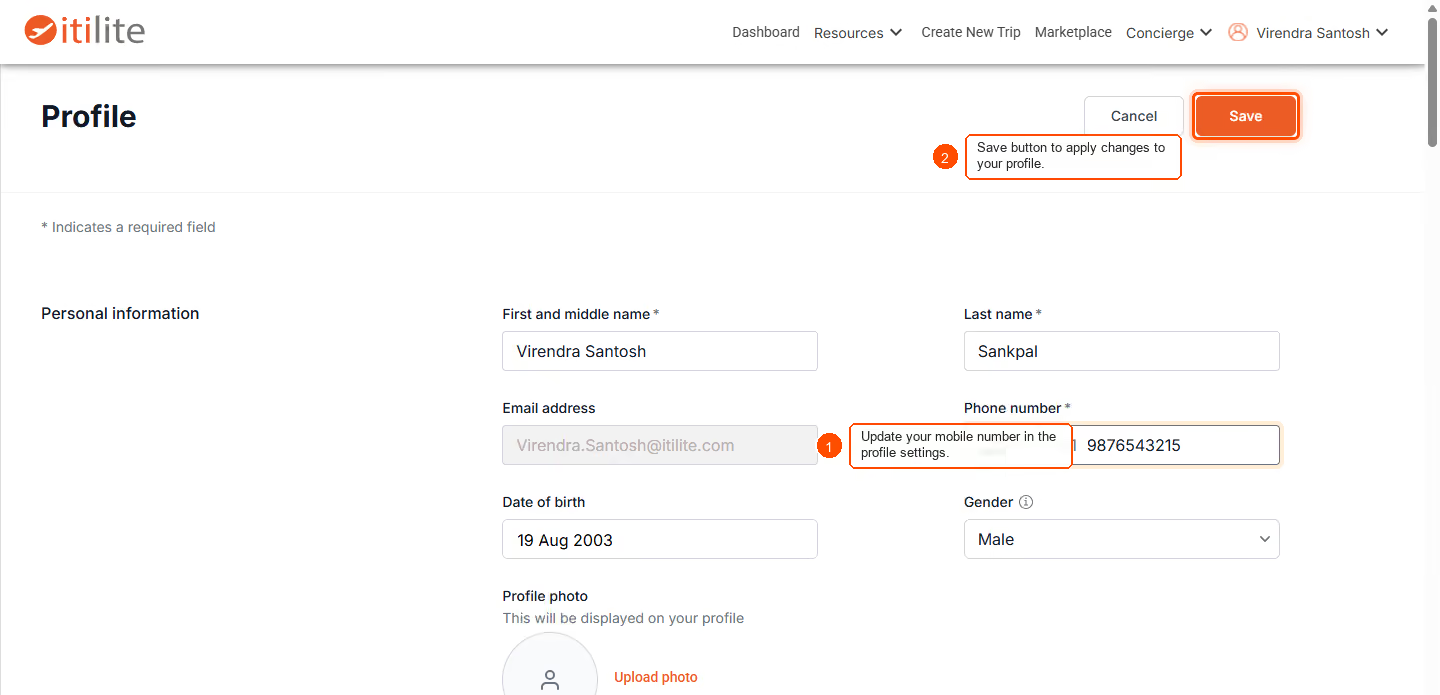
- Locate the mobile number field and enter your new mobile number.
- Click the Save button to apply changes to your profile.
Pro-Tips & Guardrails
Note: Any changes made to your profile information does not affect any already confirmed bookings and only applies to future bookings.
Note: Ensure your new mobile number is accurate to avoid communication issues.
Pro-Tip: Always verify the updated information after saving to confirm the changes have been applied correctly.
Verification & FAQs
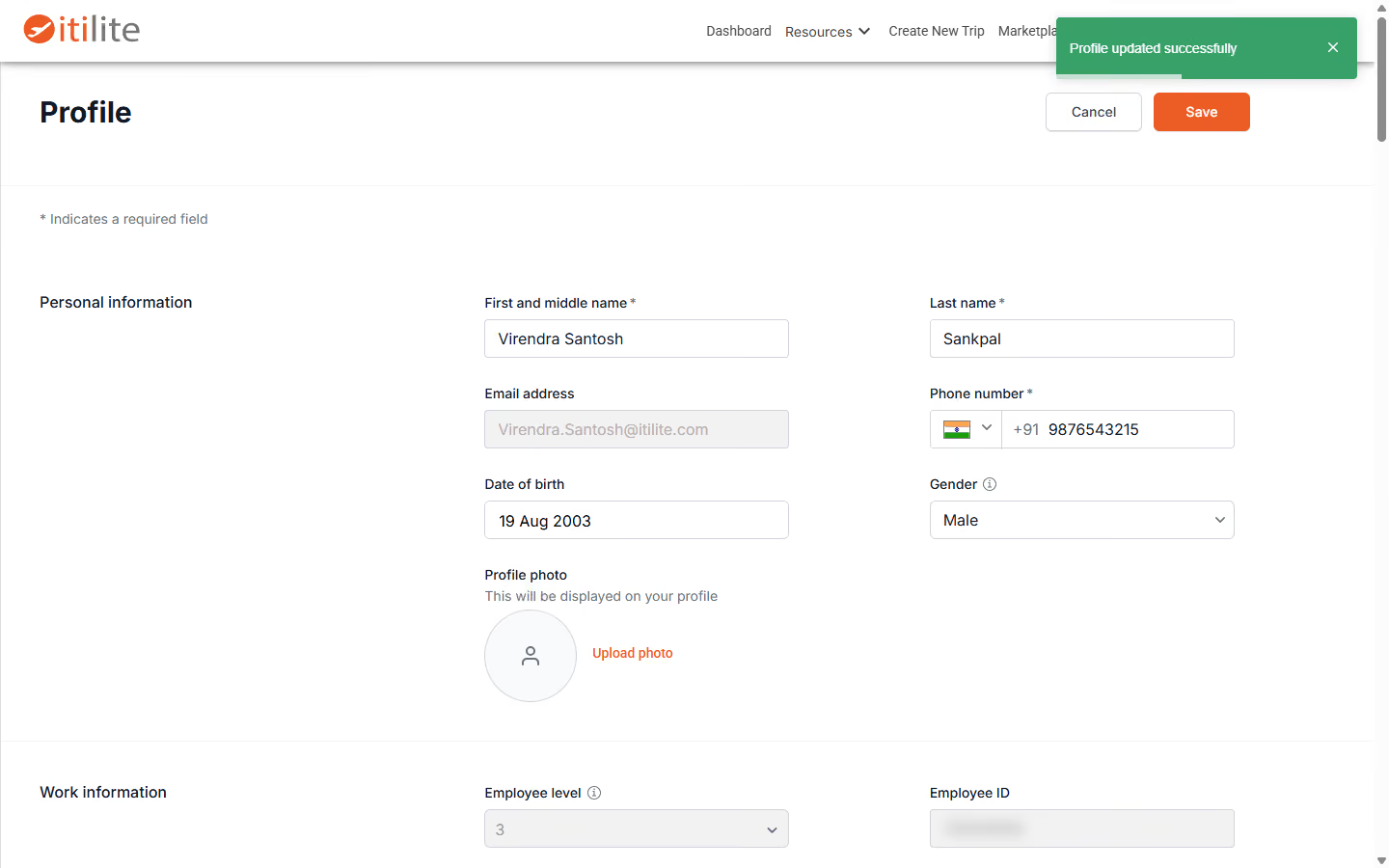
Look for a 'Profile updated successfully' toast message on the screen to confirm your mobile number has been updated.
Q: What if I don't see the 'Profile updated successfully' message?
A: If the success message does not appear, please recheck your internet connection and try saving again. If the issue persists, contact ITILITE Support.
Q: Can I update my mobile number from the ITILITE mobile app?
A: Yes, the process to update your mobile number is similar on the ITILITE mobile application within your profile settings.
Q: Is there a limit to how many times I can change my mobile number?
A: There is no specific limit to how many times you can change your mobile number, but it is recommended to keep it updated with your primary contact number.
Ready to take your Travel Management to next level
A fully integrated corporate travel management software that dramatically reduces spends while improving user experience